Set Up AEM Sites as a Content Source
This tutorial will get you up-and-running with a new Adobe Experience Manager (AEM) project, authored in Universal Editor and published to Edge Delivery.
In about thirty minutes, you will have created your own site and be able to create, preview, and publish your own content, styling, and add new blocks. Alternatively, you can jump right in using our pre‑built tutorial environment - fully configured and ready to go. Fill out the form and get started in seconds.
If you are looking for other site creation possibilities, you may want to check out the following options.
- If you are looking for a headless solution using the Universal Editor, check out the SecurBank sample app.
- If you are looking for an Adobe Commerce Storefront and you don’t have access to AEM as a Cloud Service, use the Adobe Commerce Site Creator instead.
Prerequisites
To be successful using this tutorial, you must fulfil the prerequisites.
- You have a GitHub account, and understand Git basics.
- You have access to an AEM as a Cloud Service environment.
- You understand the basics of HTML, CSS, and JavaScript.
- You have Node/npm installed for local development.
- You have installed the AEM Sidekick in your browser.
Use a project boilerplate to create your code repository
The fastest and easiest way to get started following AEM best practices is to create your repository using the boilerplate GitHub repository as a template.
- Navigate to the GitHub page of the boilerplate appropriate for your project.
- For most projects:
https://github.com/adobe-rnd/aem-boilerplate-xwalk - For projects that integrate with Adobe Commerce:
https://github.com/adobe-rnd/aem-boilerplate-xcom
- For most projects:
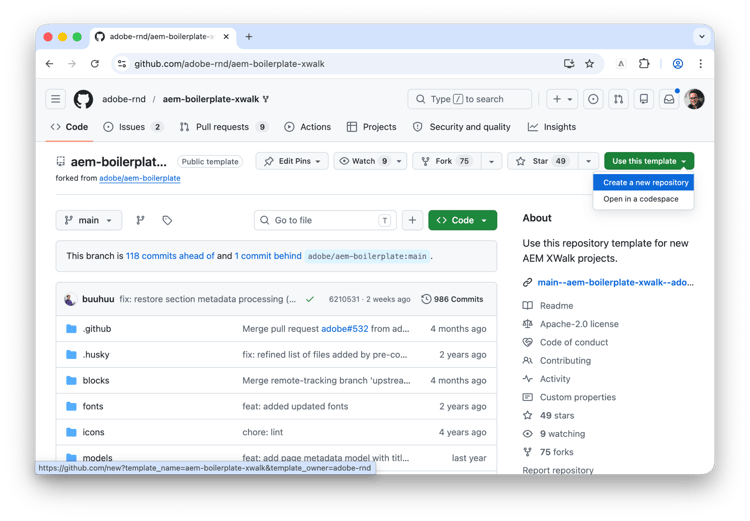
- Click on Use this template and select Create a new repository.
- You need to be signed in to GitHub to see this option.
-
-
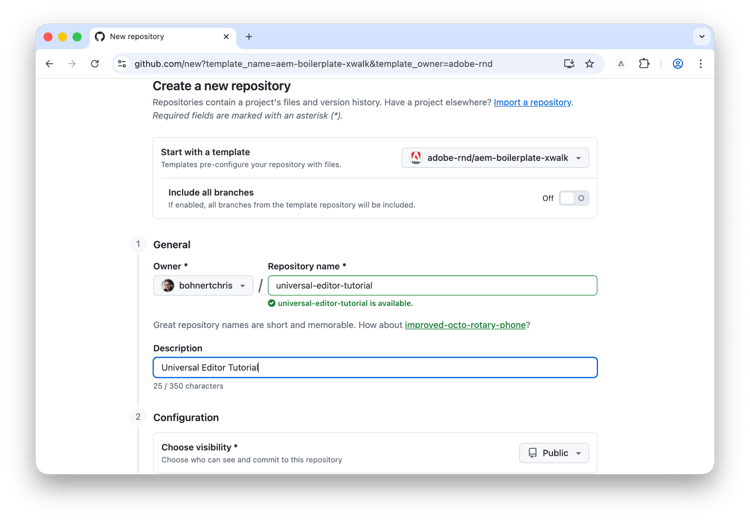
By default, the repository will be assigned to you. Provide a repository name and description and click Create repository.
Connect your code to your content
Now that you have your GitHub project, you need to link the repository to your AEM authoring instance.
- In your new GitHub project, click the
fstab.yamlfile to open it and then the Edit this file icon to edit it. -
Edit the
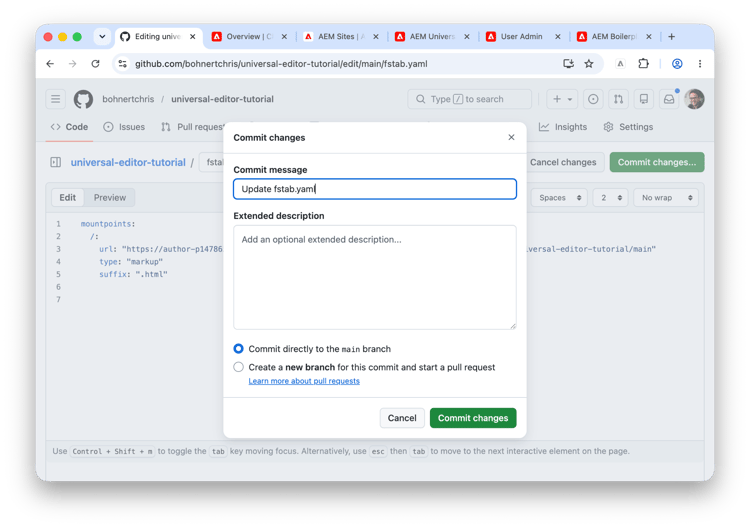
fstab.yamlfile to update the mount point of your project. Replace the default Google Docs URL with the URL of your AEM as a Cloud Service authoring instance and then click Commit changes….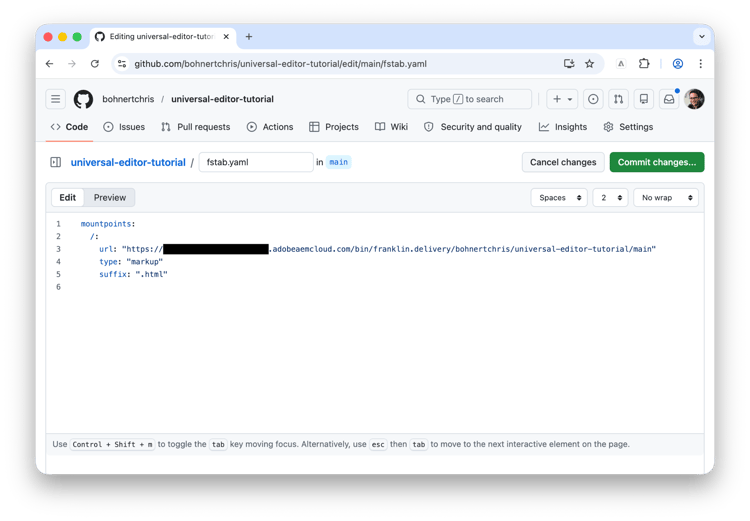
https://<aem-author>/bin/franklin.delivery/<owner>/<repository>/main- Changing the mount point tells Edge Delivery Services where to find the content of the site.
- Edge Delivery Services will always reference the
fstab.yamlfrom yourmainbranch.
- Add a commit message as desired and then click Commit changes, committing them directly to the
mainbranch. -
IMPORTANT:
- You must update the
fstab.yamlbefore running the AEM Code Sync bot in the next step. - Once AEM Code Sync bot has created the configuration in the config service, the
fstab.yamlis no longer needed and can be deleted. - If you need to update the Content Source URL at a later point in time you can use
https://tools.aem.live/tools/site-admin/index.html
Connect AEM Code Sync bot
The AEM Code Sync bot listens for changes to your code and updates the code bus in Edge Delivery Services whenever changes occur. The bot also set up the org and site in the Edge Delivery Configuration Service.
-
In a new tab in the same browser, navigate to
https://github.com/apps/aem-code-syncand click Configure.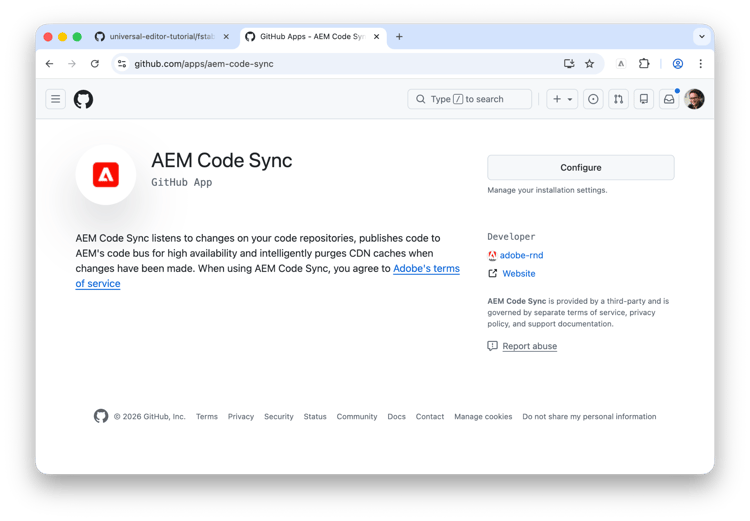
-
Click Configure for the org where you created your new repository in the previous step.
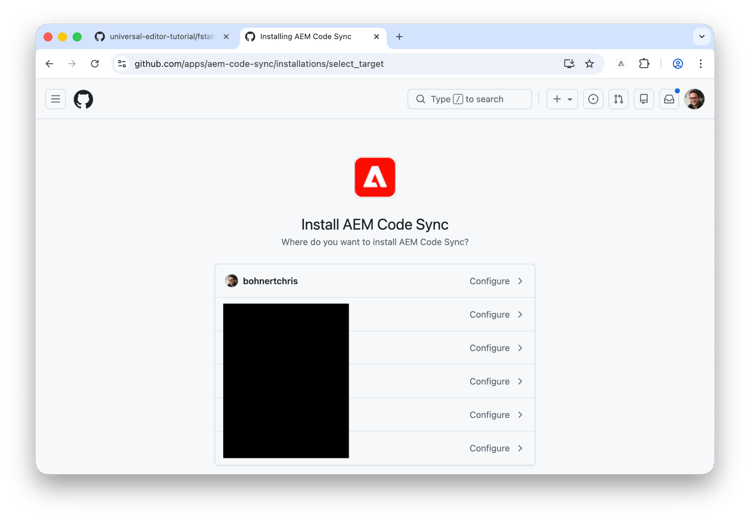
-
On the AEM Code Sync GitHub page under Repository access, select Only select repositories, select the repository that you created in the previous step, and then click Save.
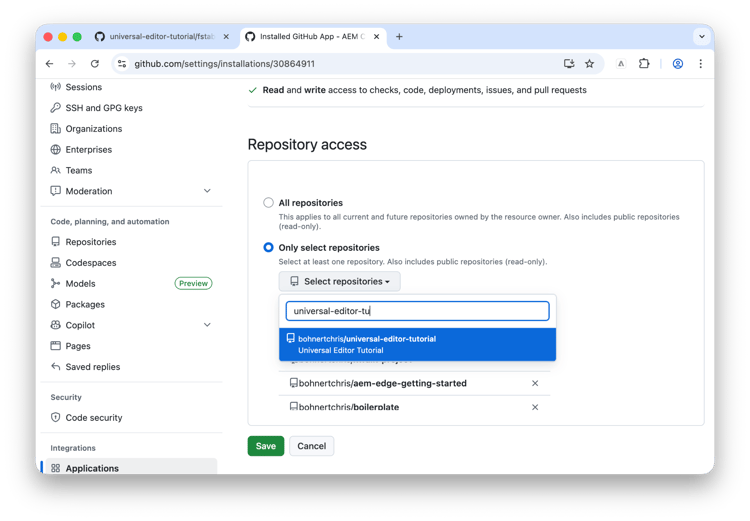
-
Follow the steps of the AEM Configuration Setu
- Step 1: Code - Click Next
- Step 2: Content - Content Source type is already preselected to Other (bring your own markup) and the value for Content Source URL is read from
fstab.yaml. Click Next. - Step 3: Users - Add the user(s) that will have admin rights to manage this site config. Click Next.
- Step 4: Finish - Review the summary and click Save.
Your code is now available at https://main--<site>--<org>.aem.page/ e.g. https://main--<site>--<org>.aem.page/scripts/aem.js
Create an AEM site
With your GitHub project set up and linked to your AEM instance, you are ready to create a new AEM site using Edge Delivery Services.
- Download the latest AEM authoring with Edge Delivery Services site template from GitHub appropriate to your project.
- For most projects:
https://github.com/adobe-rnd/aem-boilerplate-xwalk/releases - For projects that integrate with Adobe Commerce:
https://github.com/adobe-rnd/aem-boilerplate-xcom/releases
- For most projects:
-
Sign in to your AEM as a Cloud Service authoring instance and navigate to the Sites console and click Create → Site from template.
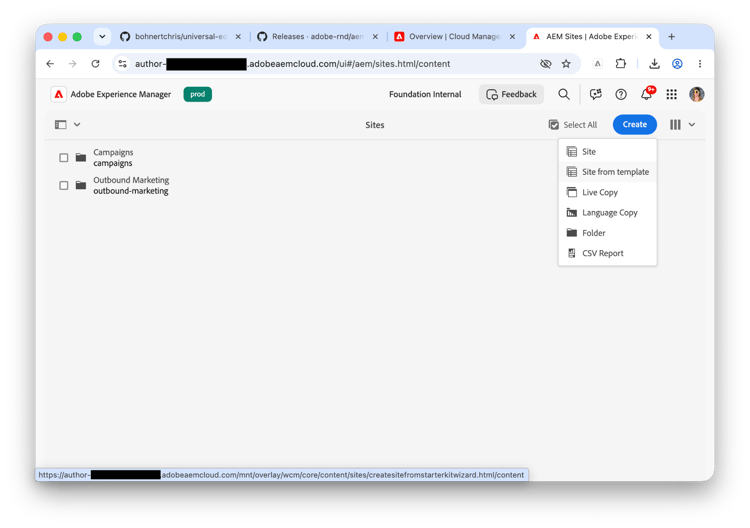
-
On the Select a site template tab of the create site wizard, click the Import button to import a new template.
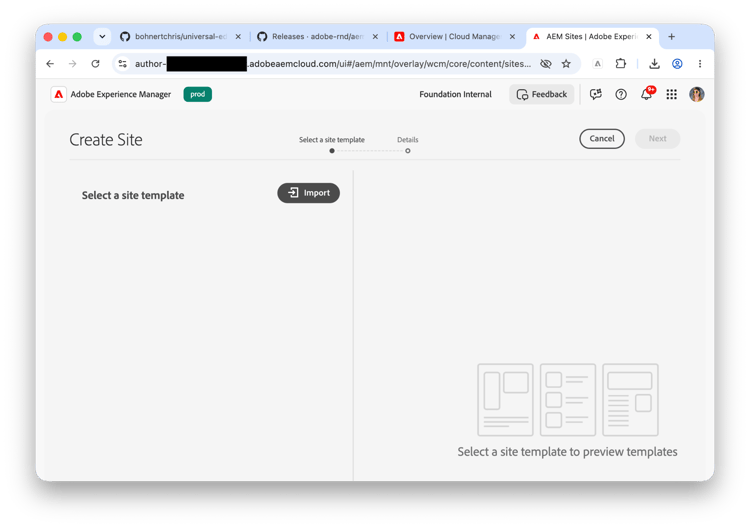
- Upload the AEM authoring with Edge Delivery Services site template that you downloaded from GitHub.
- The template must only be uploaded once. Once uploaded, it can be reused to create additional sites.
-
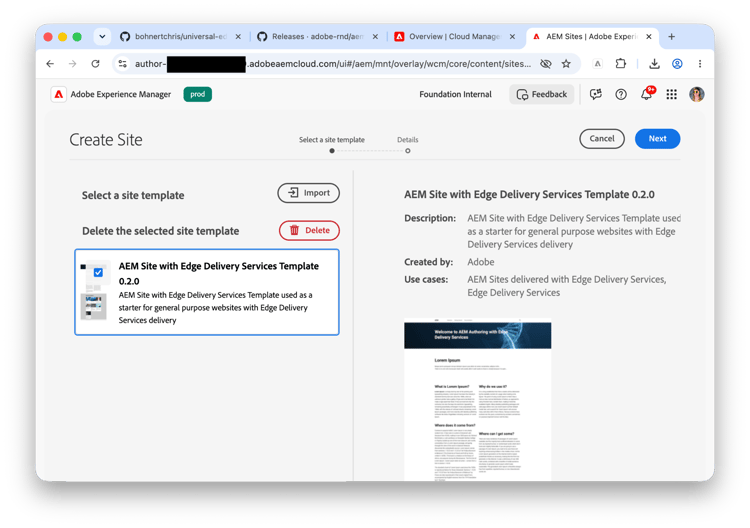
Once the template is imported, it appears in the wizard. Click to select it and then click Next.
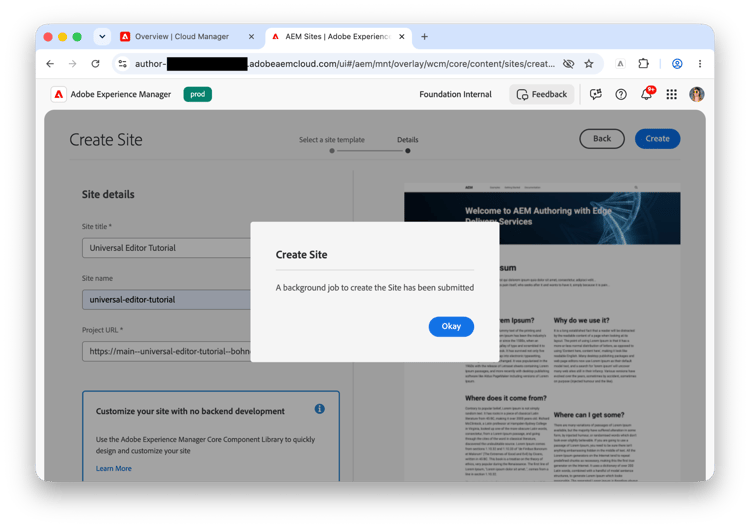
- Provide the following fields and tap or click Create.
- Site title - Add a descriptive title for the site.
- Site name - Set a name for the site.
-
Project URL - Provide a URL with the following structure
https://main--<site>--<org>.aem.page.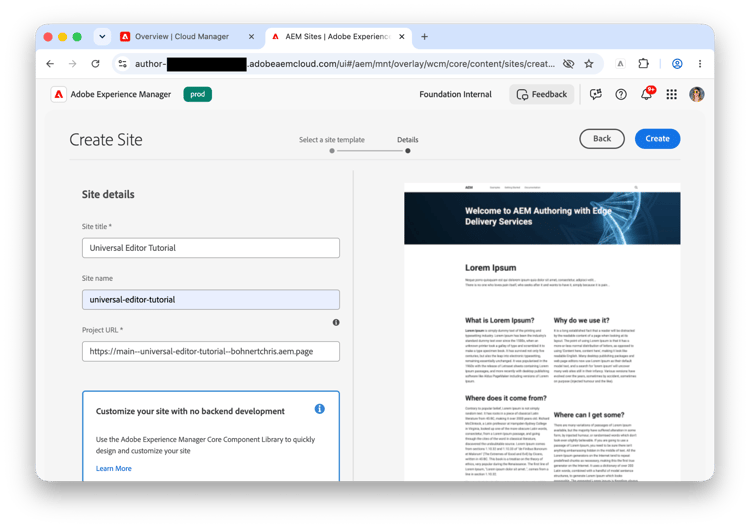
-
AEM confirms the site creation with a dialog. Click OK to dismiss.
-
On the sites console, navigate to the
index.htmlof the newly created site and click Edit in the toolbar.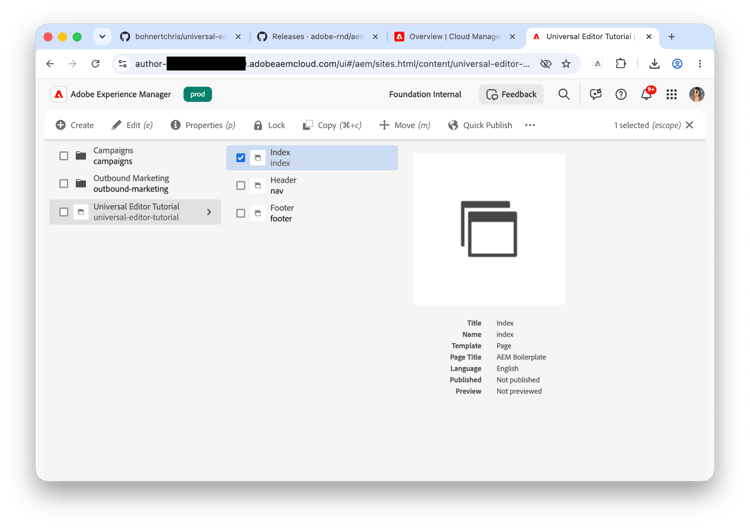
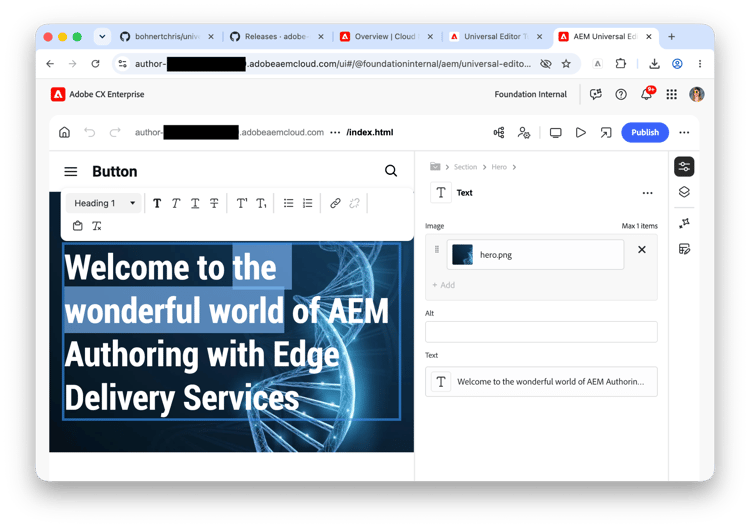
- The Universal Editor opens in a new tab. You may need to tap or click Sign in with Adobe to authenticate to edit your page.
You can now edit your site using the Universal Editor.
Setting the technical account
The technical account is a unique, read-only account automatically generated for each AEM as a Cloud Service instance. You need to configure access control so it has privileges to publish.
-
Sign into the AEM author instance and go to Tools → Cloud Services → Edge Delivery Services Configuration and select the configuration that was automatically created for your site and tap or click Properties in the toolbar.
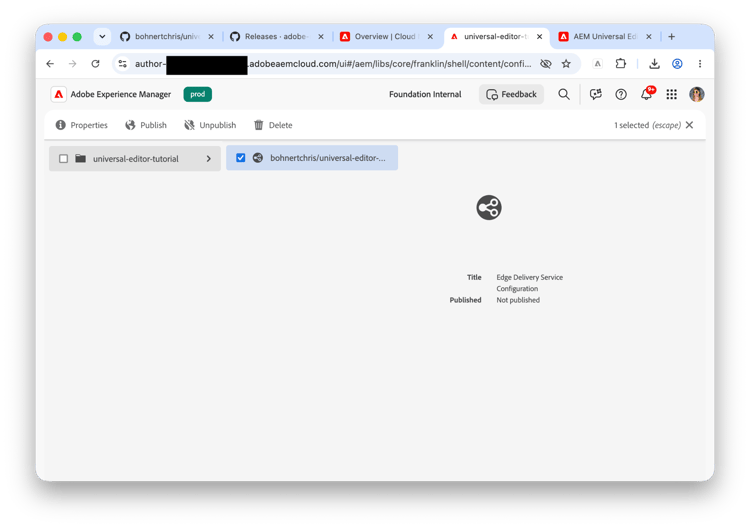
- In the Edge Delivery Services Configuration window, select the Authentication tab and copy the value for the technical account ID.
-
It will look similar to
<tech-account-id>@techacct.adobe.com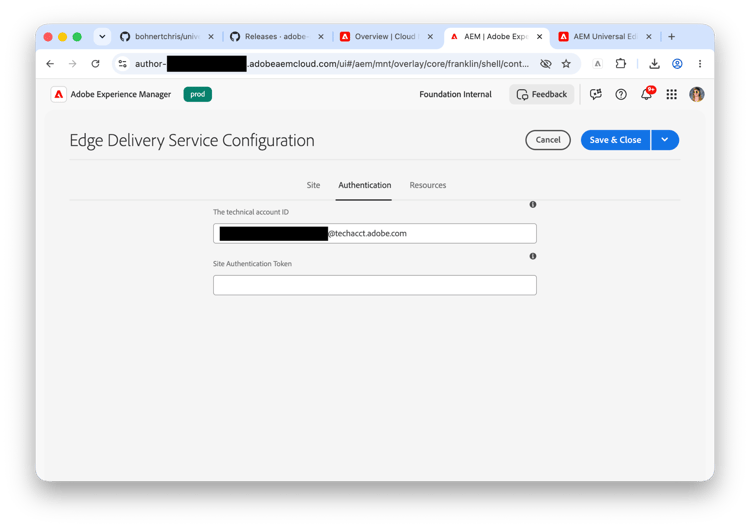
-
It will look similar to
- Go to the user admin tool at
https://tools.aem.live/tools/user-admin/index.html- IMPORTANT: Before doing the next step, make sure your user email is listed as Admin when you fetch users.
- If not, add that user as an admin first (see the previous section), otherwise you will lock yourself out of your site configuration.
-
Add the technical account as a new user with Config Admin role:
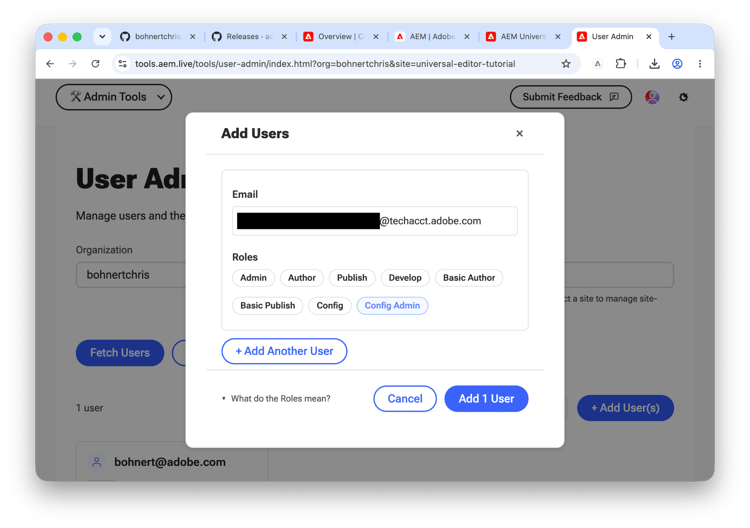
Please note that it may take a minute or two for the config to update.
Publishing your new site to Edge Delivery Services
Once you are finished editing your new site using the Universal Editor and have configured your technical account, you can publish your content.
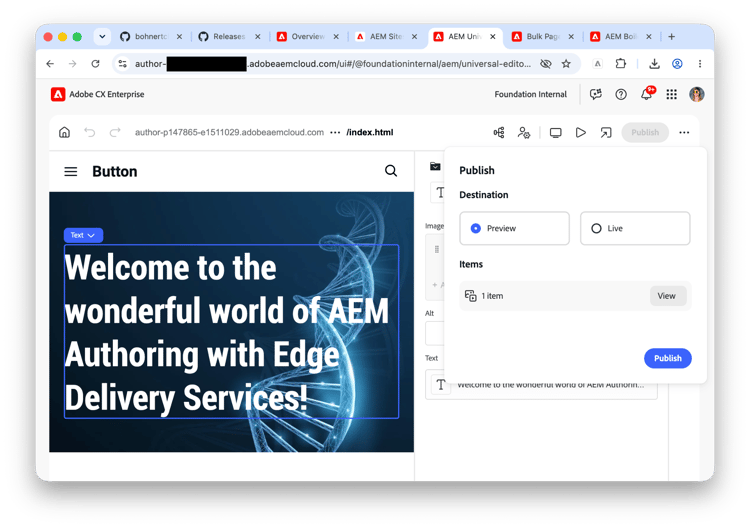
- Return to the Universal Editor tab in your browser where you edited the
index.htmland click Publish. -
In the popup, select Preview as the Destination and then click Publish.
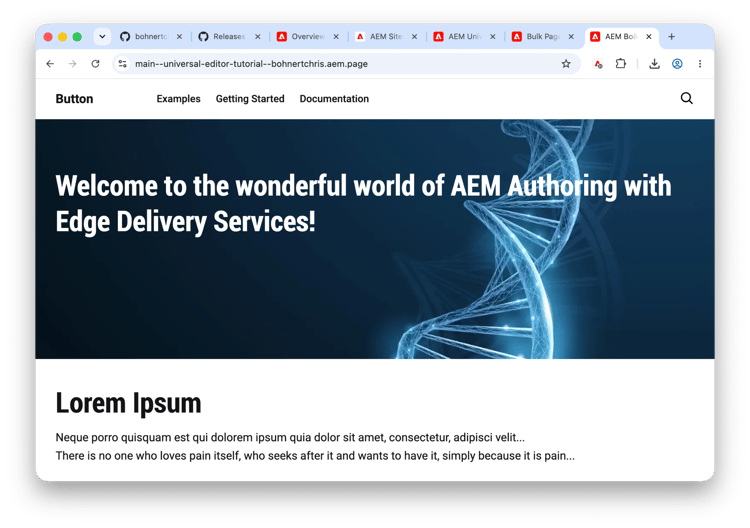
- Open a new tab in the same browser and navigate to the URL of your new site.
https://main--<org>--<owner>.aem.page
-
See your content published.
Now that you have a working Edge Delivery Services project with AEM authoring, you can begin customizing it by creating and styling your own blocks.
Start developing styling and functionality
To get started with development, it is easiest to install the AEM Command Line Interface (CLI) and clone your repo locally using the following.
npm install -g @adobe/aem-cli
git clone https://github.com/<owner>/<repo>
From there, change into your project folder and start your local development environment using the following.
cd <repo>
aem up
This opens http://localhost:3000/ and you are ready to make changes.
A good place to start is in the blocks folder which is where most of the styling and code lives for a project. Simply make a change in a .css or .js and you should see the changes in your browser immediately.
Once you are ready to push your changes, simply use Git to add, commit, push and your code to your preview (https://<branch>--<repo>--<owner>.aem.page/) and production (https://<branch>--<repo>--<owner>.aem.live/) sites.
That’s it, you made it! Congrats, your first site is up and running. If you need help in the tutorial, please join our Discord channel or get in touch with us.