
Media Library
Media Library is a unified view into your site's images, fragments, videos, SVGs, PDFs, and more. Whether they are embedded into documents, uploaded into Experience Workspace directly, or externally referenced from another DAM, you can quickly filter, see usage, get details, and make informed decisions about your content.
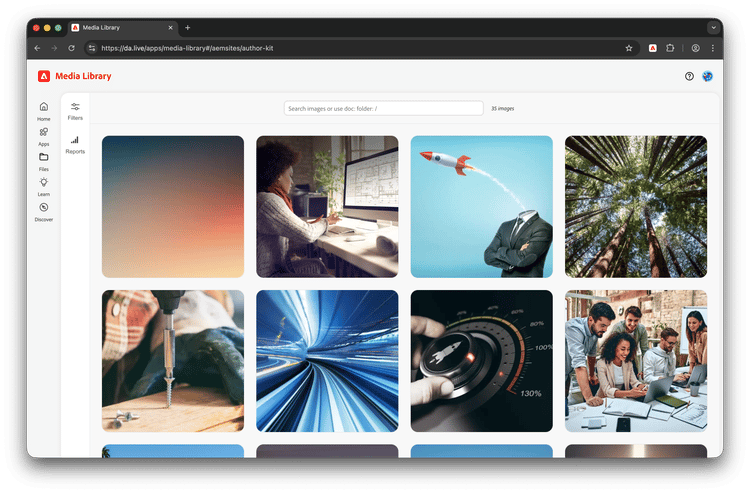
Using
- Open the Media Library landing page: https://da.live/apps/media-library
- You will be presented with your most recent Experience Workspace sites as tiles or you can paste an existing AEM URL. Click a tile to open the Media Library for that site.
- Your content will need to be indexed when you first load Media Library for a site. This is a history-based index that will surface most recently used content first. If your site is large, this may take some time.
- Any content created before February of 2026 will need a bulk index to populate Media Library. Please reach out to Adobe in your shared Slack, Teams, or Discord to perform this task.
- Once loaded the Media Library presents a default view of the images on the site. Hover over an asset to reveal badges of its status.
- The orange badge reveals its type.
- A blue badge reports how many times it is used in your site.
- The copy badge allows you to copy a link to the asset.
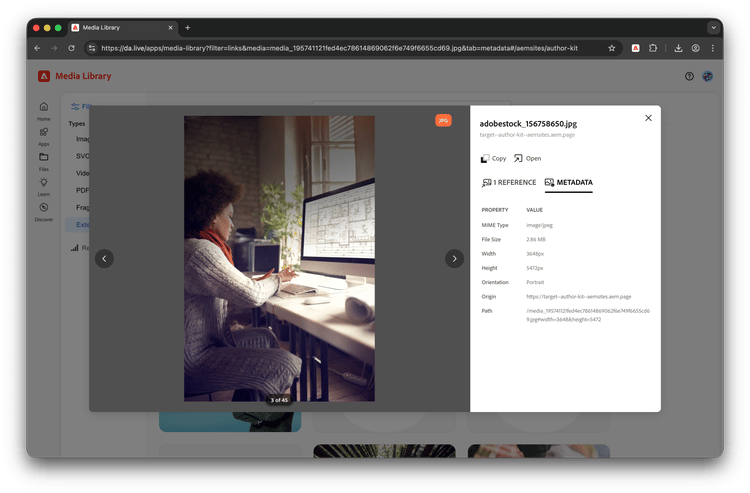
- Click on an image to get details on it.
- The Reference tab shows which pages are using the image. Click the chevron for status of that page.
- The Metadata tab shows the image's detailed metadata including size, dimensions, etc.
Filtering
Most sites must manage many media assets. Use the filters to find a particular asset quickly.
Click the Filters tab at the top-left of the Media Library to expose default filters to quickly find popular type of media including Images, SVGs, Videos, and Fragments.
Use the search bar for a more precise search.
- Search using document names, asset names, or path.
- To view media referenced in a document, use
doc: - To see all the media in a folder use
folder: - Simply type
/to see all content.
Media Library plugin
Media Library can be used as a Experience Workspace plugin which will enable authors to find and directly insert the media into the document. Add the following entry to an apps tab of your configuration sheet.
| title | path | icon | experience |
Media Library |
https://da.live/nx/public/plugins/media-library/media-library.html |
https://da.live/blocks/edit/img/Smock_Images_18_N.svg |
fullsize-dialog |
Troubleshooting
- If indexing seems stalled or broken, ensure you are able to write to
/{org}/{site}/.da/media-library - If a site or folder does not appear, check that you have access to it in Experience Workspace and in the correct IMS Org
- If usage or latest details look incomplete, ensure you have at least an
authorrole in Edge Delivery to ensure you can read the media audit log which is where Media Library gets its data. - If the image previews broken in
pluginsmode, if the site preview is behind authentication , please ensure to login into any preview page , reopen the plugin