
1 - Create your project
Visit da.live
- https://da.live/start
- Select Author Kit as your starting project.
- You will be redirected to GitHub.
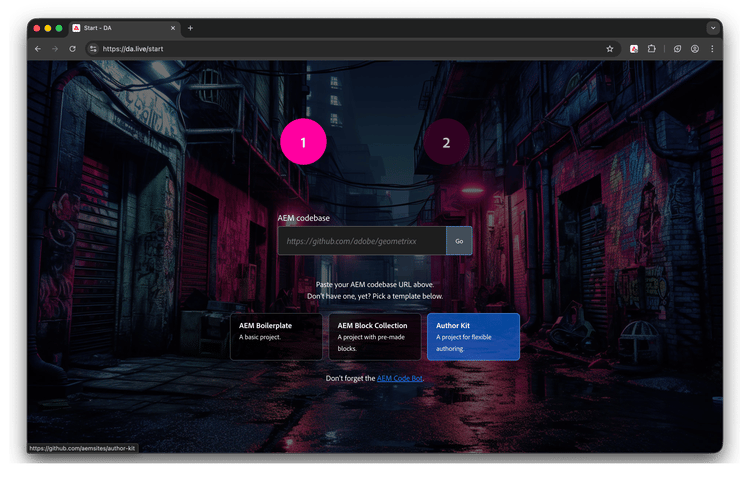
Create a GitHub project from the template
-
Click Use this template when prompted.
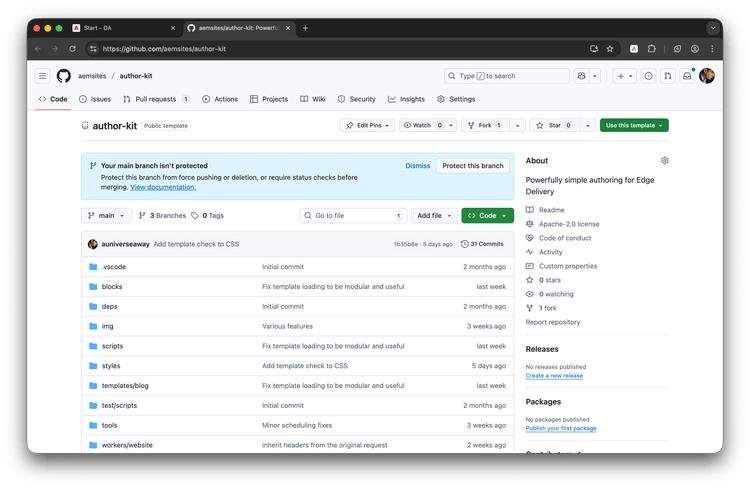
-
Select an owner and name your repository. Click Create repository.
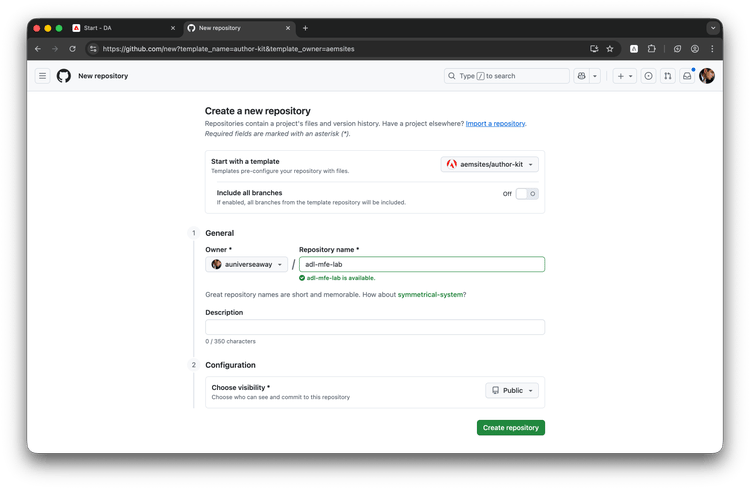
-
You will be redirected to your new repo.
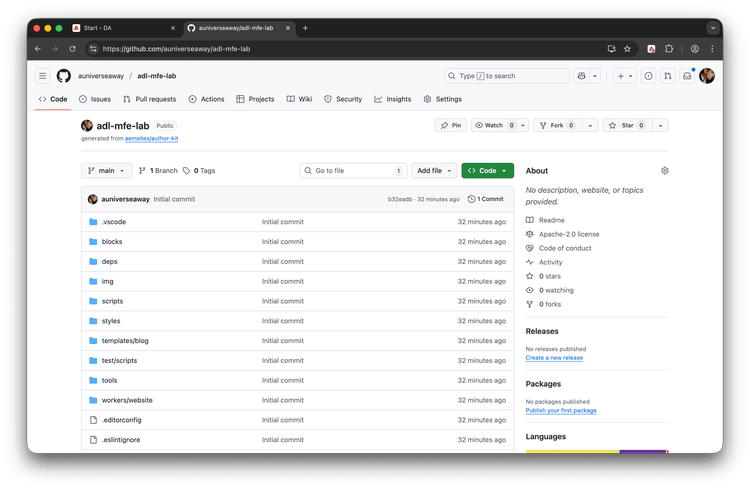
Install AEM Code Sync
-
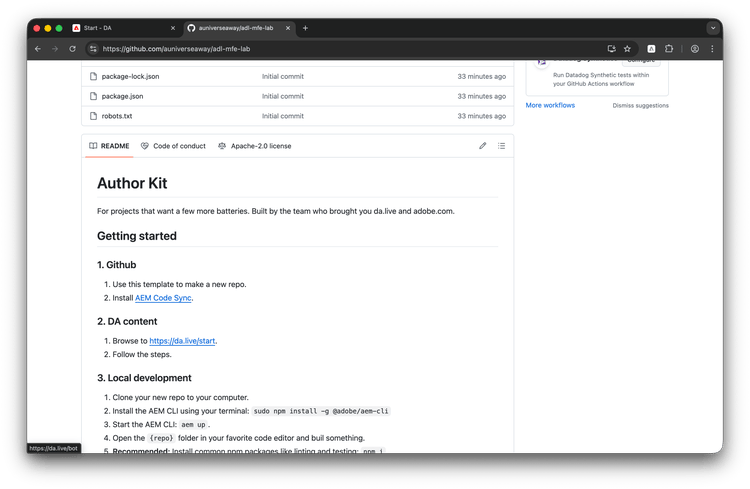
Scroll down until you see Install AEM Code Sync and select it. This tells Edge Delivery Services about your repo.
-
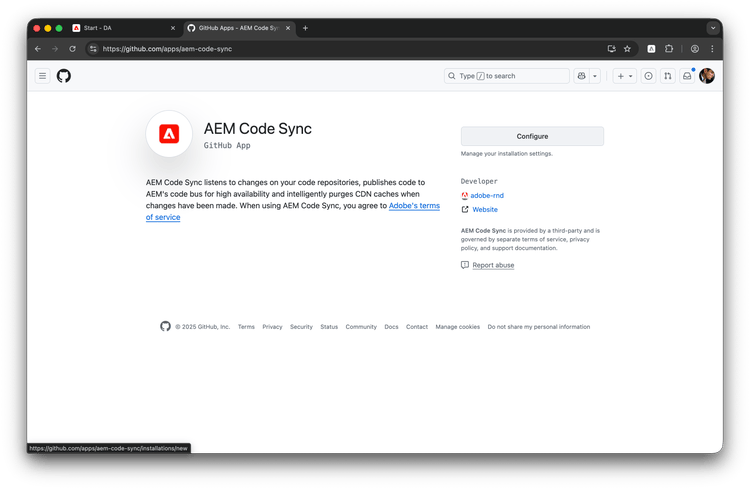
Click Configure on the bot's screen.
-
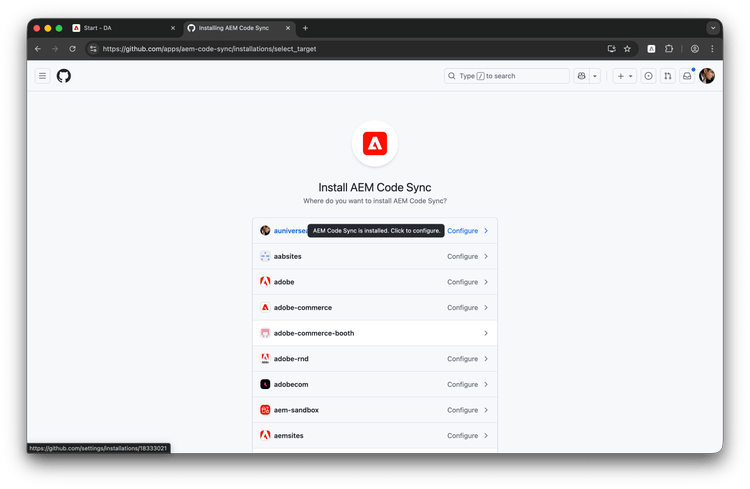
You may be prompted to select an organization. Pick the one you used to create your repo.
-
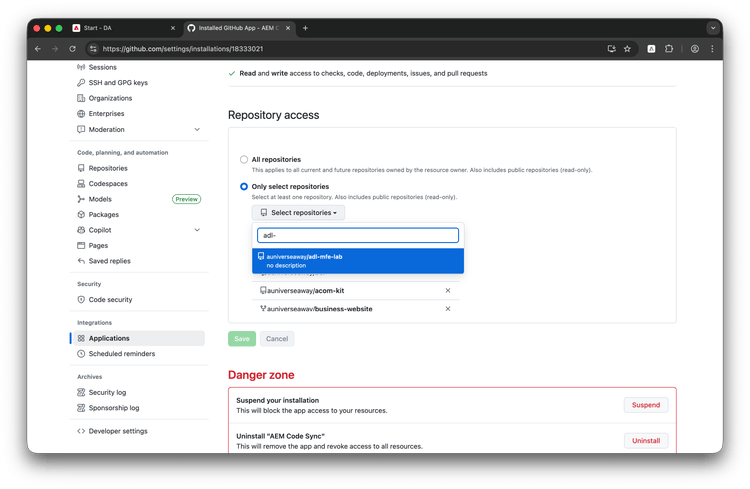
Choose Only select repositories. Filter for your repo and select it. Click Save.
-
You will be taken to the Code Sync confirmation screen. It will look like one of the two screens below.
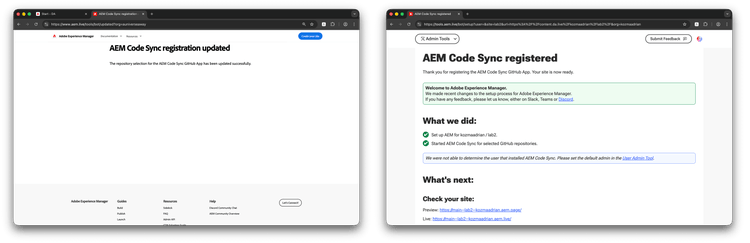
-
Click back in your browser until you get to your repo on GitHub:
https://github.com/{ORG}/{SITE}.
Copy the URL from your browser's URL bar.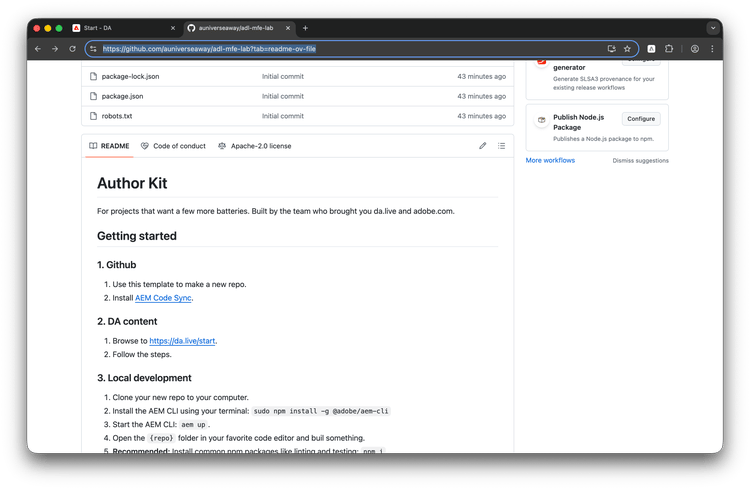
-
Paste it into https://da.live/start. Tip: It should already be open in the browser tab to the left of GitHub. Press Go.
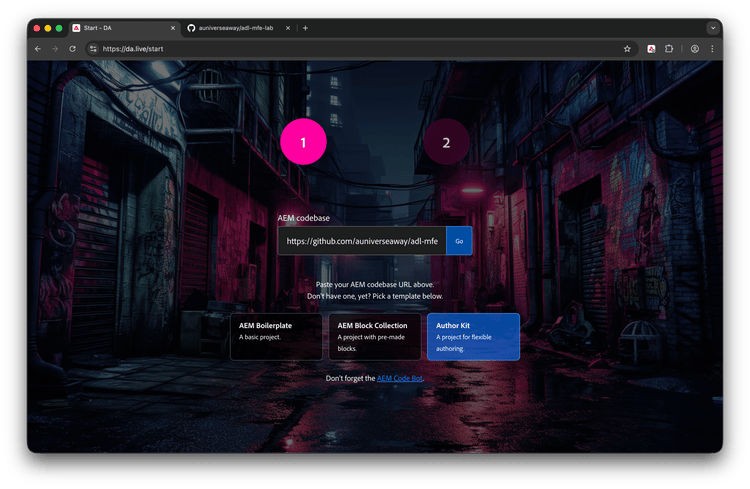
Create demo content
-
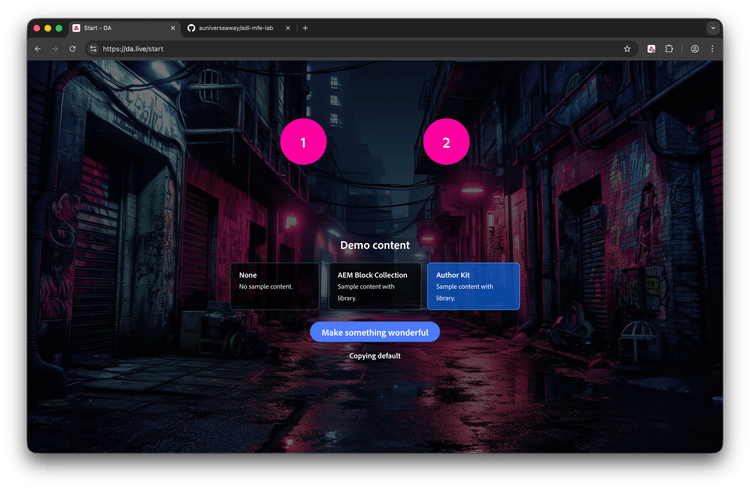
Select Author Kit demo content and click Make something wonderful. This will give you a bit of content to work with.
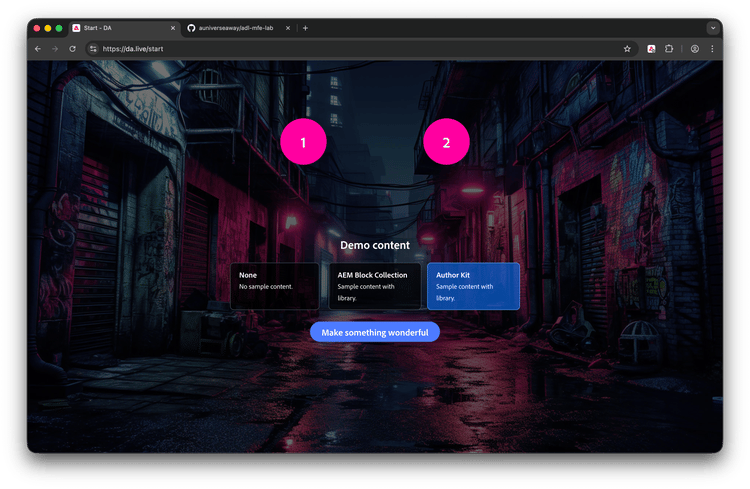
-
Basic content will be copied and previewed for your site.
Visit your site
-
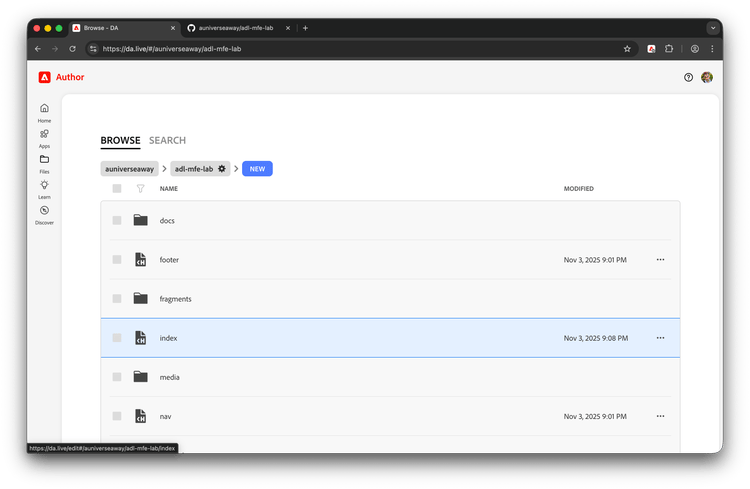
You will be taken to your content on da.live.
-
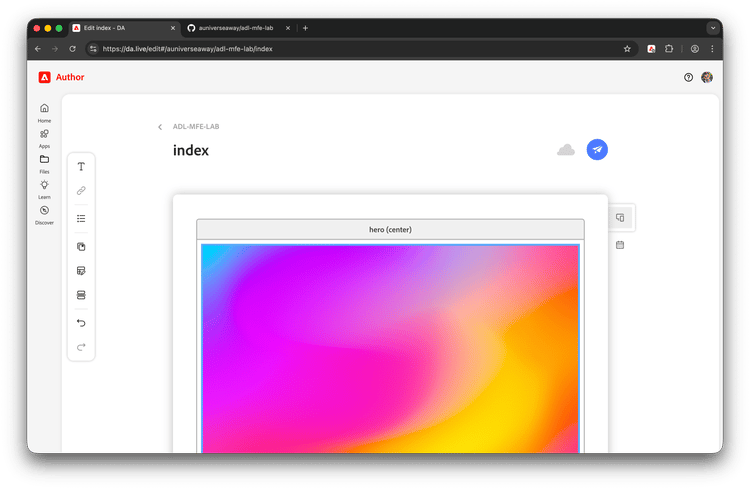
Click on index in your list of content. It will open the editor.
-
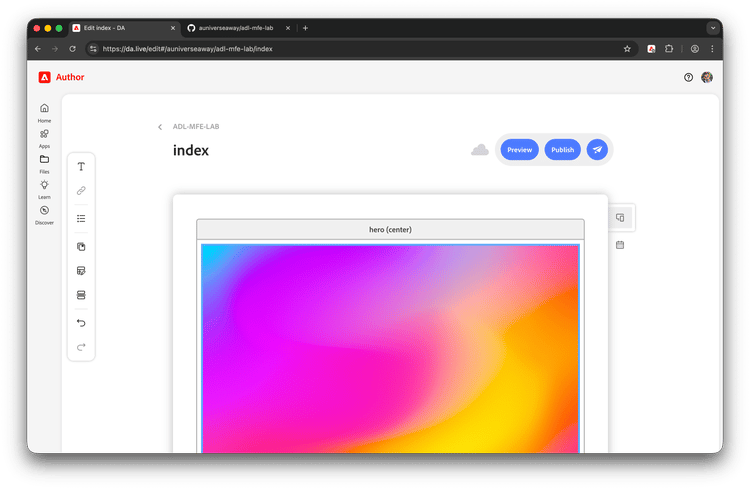
Preview your page by clicking the paper plane and the preview button.
-
You will be taken to your site.
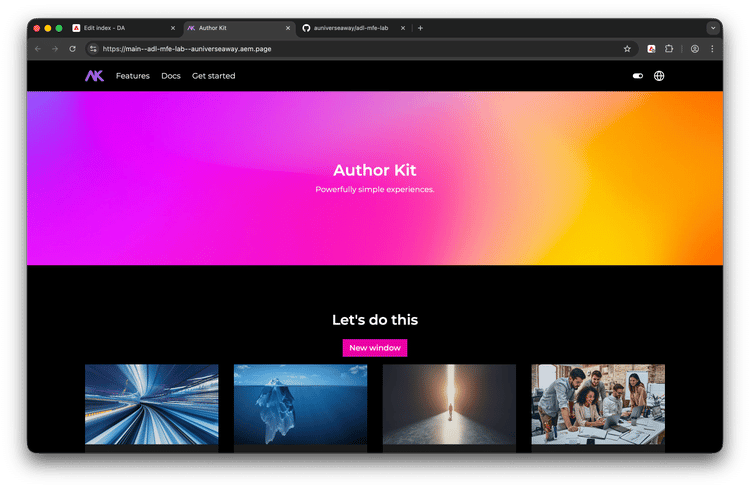
Success!
Congratulations. You have successfully made an Edge Delivery Services project.