
Access control
Disclaimer
This document describes access control when using da.live as your content source. If you use Helix Source Bus, manage access control using the API or the User Admin. If you are uncertain what access control you need, please reach out to Adobe.
This document is a reference for all options available for securing Experience Workspace content. This is not to be confused with locking down your AEM content.
Prerequisites
Please read the administrator permissions document before continuing.
Declaring ACLs
Each folder and document in Experience Workspace can have access control definitions. This allows an administrator to specify who can see documents and who can edit.
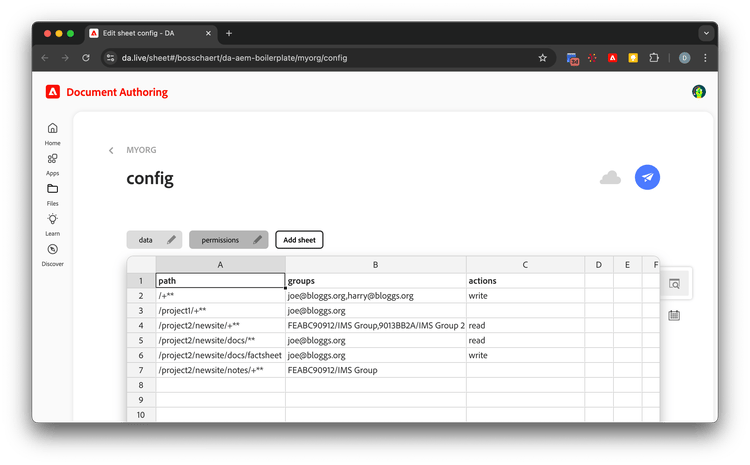
ACLs are declared as part of the configuration at the organization level on a tab called permissions. For example:
Actions
Permissions are defined as actions on a per-path basis. Each path listed gives allowed actions to individual users or IMS groups. They are specified in the actions column:
read: The user can read resources for this path.write: The user can write resources for this path (writeimpliesreadpermissions).- (nothing): The user does not have any permission for this path.
Groups
Users/groups are specified in the groups column. This is a comma-separated list of user emails/IDs and/or IMS Org/IMS group tuples. The IMS IDs can also be used instead of the IMS descriptive name or email address.
The following values are possible:
- email - e.g.
joe@bloggs.com- Note that using this form means that the user can be in any organization, including their personal one.
- IMS Org ID - e.g.
FEDCBA987654321 - IMS Org ID/IMS Group name - e.g.
FEDCBA987654321/My Group 1 - IMS Org ID/email - e.g.
FEDCBA987654321/joe@bloggs.com
It's also possible to combine IMS names and IDs, for example using an IMS Org ID with an IMS Group Name: FEDCBA987654321/My Group 1.
Path syntax
The following syntax is supported for paths. Where 'documents' are mentioned, this means text documents, sheets and other resources such as PDFs, videos and audio files.
/project/dir/document1- This matches this specific document (document1).- In the previous screenshot,
joe@bloggs.orgis given write access to the/project2/newsite/docs/factsheetdocument.
- In the previous screenshot,
/project/dir/sheet1.json- Matches this specific sheet (sheet1)/project/dir/img1.jpeg- This matches this specific image (img1.jpeg).- This also applies to PDFs, videos, audio files, etc.
/project/dir/subdir1or/project/dir/subdir1/- Matches this specific folder (subdir1)/project/dir/**- This matches all documents and folders under/project/dirbut does not match thedirfolder itself.- In the previous screenshot,
joe@bloggs.orgis given read access to all documents and folders under/project2/newsite/docs.
- In the previous screenshot,
/project/dir/+**or/project/dir/ + **- This matches all documents and folders under/project/dirincluding thedirfolder itself.- This effectively is the same as the previous item with the containing folder added.
- In the previous screenshot, users in the IMS group
FEABC90912/IMS Groupare given no access to/project2/newsite/notesand its subfolders and documents.
CONFIG- This special value governs the permissions for the owning organization configuration.ACLTRACE- This special permission can be (temporarily) given to a user to provide tracing information about the ACL matching.- The tracing information is returned in the
X-da-acltraceheader on (HEAD/GET) requests for da-admin.
- The tracing information is returned in the
Note that there isn't any distinction between a folder and a document in how paths are evaluated. If it is necessary to distinguish between these (i.e when there is a folder with the same name as a document), a document can also be addressed with its .html suffix, e.g. /project/dir/document1.html.
The order of the rows in the sheet is not important. At runtime the paths are sorted by length and for each group and the longest matching path is used.
Process
To find a user's allowable actions the following process is used.
- For each of the user's matching groups, the longest matching path for a requested resource is searched and the allowable actions are looked up.
- Once a matching path is found the searching stops for this group.
- Then all actions found are merged into a set and returned.
As an example, let's assume that harry@bloggs.org is in FEABC90912/IMS Group and needs access to /project2/newsite/food/monday.
- The ACL lookup finds that
FEABC90912/IMS Grouphas its longest path defined as/project2/newsite/+**withreadpermissions. The ACL lookup also finds thatharry@bloggs.orghas write permissions to/+**which is the longest matching path for the email address. - With the longest matching paths found, the search stops.
- The resulting action set for the requested resource is the union of these:
readandwrite.
Getting started
When starting a config sheet with permissions you should always include the CONFIG permission in the sheet to give yourself config editing rights. If you do not do this, you could lock yourself and others out of the site!
You can start with copying this table and pasting it in the config sheet:
For developers
Experience Workspace provides a few affordances to convey the permissions for a given resource.
401Response Status - The user is anonymous and does not have access to the resource.403Response Status - The user is logged in and does not have access to the resource.x-da-actionsResponse Header - A hint to convey the read and write permissions of a resource- Example:
/da-bacom/customer-success-stories.html=read(read) - Example:
/da-bacom/drafts/cmillar/testing123.html=read,write(read / write)
- Example:
x-da-child-actionsResponse Header - A hint to convey the read and write permissions of a folders children (only exposed in the list API)
Example
As an example let's walk through the previous screenshot, line-by-line.
- This is the headings row.
- Both
joe@bloggs.organdharry@bloggs.orghavewritepermissions to the root of theMyOrgorganization. Havingwritepermission also means they havereadpermission. This means that they can list all projects and they can have full access to any project not further specified in the ACL sheet. If we assume there was a/project3then both have fullwriteaccess to that. joe@bloggs.orghas its permissions taken away for the/project1project. So Joe can't access any documents or folders under/project1. As the.../+**syntax is used Joe can also not list the contents of the/project1folder itself.- Any user in
FEABC90912/IMS Groupor in9013BB2A/IMS Group 2hasreadaccess to/project2/newsiteand its subfolders and documents. Because the.../+**syntax is used these users also have rights to list the/project2/newsitefolder itself.joe@bloggs.organdharry@bloggs.orgalready havewriteaccess to this folder and its subfolders. Even if they are in these IMS Org/Group the fact that they havewritepermission is not taken away as the write permission is granted on their email address. joe@bloggs.orgis only givenreadaccess to subfolders and documents of/project2/newsite/docs. So this line takes away thewriteaccess from line 4 for these paths. Note thatharry@bloggs.orgstill haswritepermission here.joe@bloggs.orgis givenwriteaccess to the/project2/newsite/docs/factsheetdocument, making this the only document in this folder (and subfolders) that this user has write access to.- Users in
FEABC90912/IMS Groupdo not have any permissions on the/project2/newsite/notesfolder, subfolders and documents. So users in this group will not be able to list this folder or see any of its documents or subfolders. This reduces the permissions given to these users in line 4. Note that users in9013BB2A/IMS Group 2still havereadpermission here and also users that are in both will still havereadpermission as they are evaluated per group and the union of the results is taken. Also note thatjoe@bloggs.orgharry@bloggs.orgstill have write permission to this path and its subpaths from line 2.