
Permissions and security
Experience Workspace and Edge Delivery Services allow fine-grained control of access to configurations, folders, and resources.
The ecosystem of access control
There are four different areas where someone may want to place access control on their content:
- Ability to author content - This access control is handled by Experience Workspace.
- Ability to preview content - This access control is handled by Edge Delivery Services.
- Ability to publish content - This access control is handled by Edge Delivery Services.
- Ability to view origin content - This access control is handled by Edge Delivery Services.
Understanding identities
Experience Workspace and Edge Delivery Services have different identity requirements. Where Experience Workspace uses Adobe Identity (IMS) to guarantee a seamless experience within Adobe Experience Cloud, Edge Delivery Services needs to support services outside Adobe like Microsoft SharePoint and Google Drive.
| Action | Supported identities | Handled by | Tool |
| Edit source content | IMS Org, IMS Group, email | Experience Workspace Config | https://da.live/config |
| View source content | IMS Org, IMS Group, email | Experience Workspace Config | https://da.live/config |
| Preview content | email, email wildcard, Edge Delivery group | Edge Delivery Config Service | https://tools.aem.live/tools/user-admin/index.html |
| Publish content | email, email wildcard, Edge Delivery group | Edge Delivery Config Service | https://tools.aem.live/tools/user-admin/index.html |
| View origin content | email, email wildcard, Edge Delivery group | Edge Delivery Config Service | https://tools.aem.live/tools/admin-edit/index.html |
Understanding organizations
In IMS you can belong to multiple organizations. As an example, imagine if you were a consultant for two companies. Your contract may expire with one while the other is still in place. Having the ability to granularly say which organization you're doing work for through different organizations is a feature of IMS.
If a user should have access to content and is not seeing it, it can often be that they are logged into a different organization. Check the Account option in the menu bar to see if you are looking at the right org.
Ability to preview, publish, and view Edge Delivery Services content
For details, please see the document Configuring Authentication for Authors.
Ability to author content
Introduction and concepts
Experience Workspace provides a simple, yet powerful, way to organize and manage permissions for your authored content.
- Identity provider (IdP) - Experience Workspace uses Adobe Identity (IMS). You will need an Adobe account (free) to access protected content. If you wish to bring your own identity provider, you can do this through built-in IMS integrations.
- Organization, groups, or email - You can use IMS organizations, IMS groups, or an IMS email address as the audiences for your content. While organizations and groups provide a central place to manage identity, if you do not have access to Adobe Admin Console, you can use email addresses directly in Experience Workspace.
- Read, write, or none - To reduce confusion over fine-grained access control, Experience Workspace provides simple
read,write, and[ ](empty / none) actions to help you better understand how your content creators are impacted. - Folders, children, files, configs - You have the ability to finely tune what types of content people have access to.
- Sheet-based - Access and permissions are controlled through the config sheet for your organization. The syntax will feel familiar to anyone who has managed a metadata sheet for Edge Delivery Services.
Get your IMS Organization ID
Use Admin Console to get your IMS organization ID. This is the unique number before the @ symbol in the URL. You can also use the Admin Console to create groups and add users.
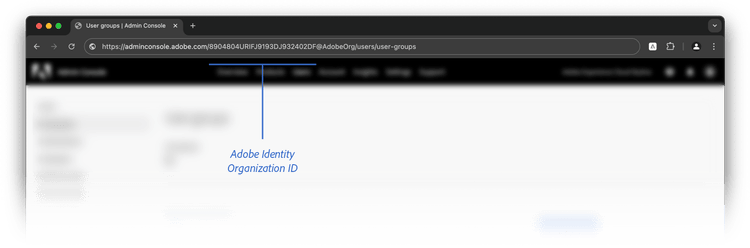
Add the IMS Org ID and associated groups with their permissions
In your the permissions tab of the Experience Workspace organization config (https://da.live/config#/name-of-org/), add your paths, organization/groups, and the action each is allowed to take.
- Organizations and groups are always entered as
orgid/groupnameusing the IMS org ID you retrieved in the previous step. - Only specifying the IMS org ID grants the permission to everyone in that org.
Here is an example configuration:
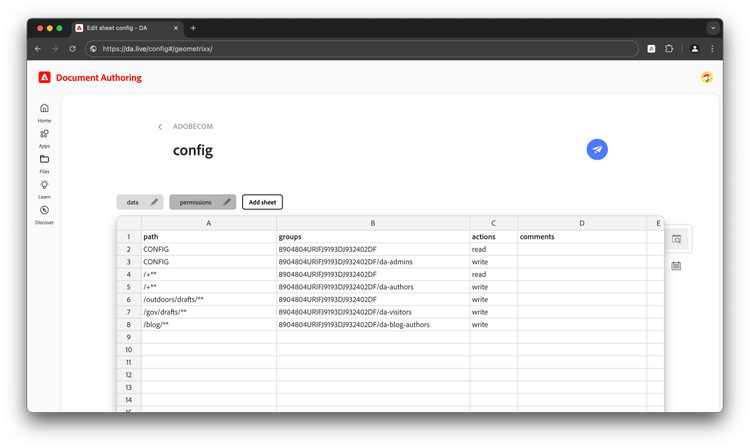
- Row 1 - This is a required header for your permission columns.
- Row 2 - I would like everyone in my organization to
readthe configs that apply to Experience Workspace. - Row 3 - I would like only people in my organization's
da-adminsgroup towriteconfigs. - Row 4 - I would like everyone in my organization to
readall content in my org. - Row 5 - I would like to grant the
da-authorsgroup in my org the ability towriteany content inside my org. - Row 6 - I would like to grant everyone in my organization
writeaccess to the Geometrixx Outdoors drafts folder. - Row 7 - I would like to grant
da-visitorsin my orgwriteaccess to the Geometrixx Gov drafts folder. - Row 8 - I would like to grant
da-blog-authorsin my orgwriteaccess to the Geometrixx Blog folder.
Permission to access configs
A site can have up to two configs:
- A organization-level configuration
- A site-level configuration
Permissions are always defined in the organization-level configuration.
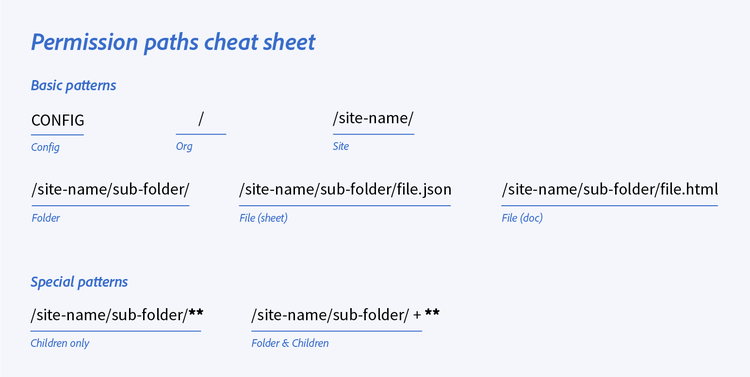
To define the permissions for the organization-level config itself, there is a special CONFIG keyword, which defines who can access it, as can be seen in the example above on row 2 and row 3.
To set the permissions for site-level configuration sheets this can be done in the following ways:
/mysite/CONFIG- A special rule for the configuration of the specific site. For example this can be used to grant additional people access to the configuration of a site, who don't have access to the org-level config./mysite/+**or/mysite/**- these wildcard rules also apply to the site level configuration, so if someone has access to everything in a site, they also have access to the configuration.CONFIG- People with access to the org-level configuration also have access to all site-level configurations.
Sample sheets
Below are recommended permission sheets to get started. Once entered, you can save the config with your permissions sheet.
Projects that have an Adobe organization
| path | groups | actions | comments |
CONFIG |
{{YOUR_ORG_ID}} |
read |
|
CONFIG |
{{YOUR_ORG_ID}}/admins |
write |
|
/ + ** |
{{YOUR_ORG_ID}} |
read |
|
/ + ** |
{{YOUR_ORG_ID}}/authors |
write |
|
/your-site/drafts/** |
{{YOUR_ORG_ID}} |
write |
For projects that only have email / Adobe identity
| path | groups | actions | comments |
CONFIG |
aparker@geometrixx.info, lduncan@geometrixx.info |
write |
|
/ + ** |
aparker@geometrixx.info, lduncan@geometrixx.info |
write |
FAQ and tips
Here are a few common questions as well as some additional resources.
What if I do not have an IMS organization to manage groups?
You can provide email addresses as a comma separated list in place of a group.
Help! I messed something up and cannot access my org, what do I do?
Please reach out to us in your Adobe Support Slack, Teams, or Discord.
Does this have anything to do with previewing and publishing permissions?
No. This is only defines can view and edit authored content in Experience Workspace. Edge Delivery Services are responsible for preview and publish permissions.
I see read, write, and none. Is there a delete?
Write implies both read and delete.
What does "none" [ ] do?
In practice, this is a deny.
My author keeps getting taken to a 404 page. Why?
They do not have permission to access the content or the content simply doesn't exist. Check the following:
- If they were recently added to a new group, have them log out and log back in again. This will refresh Experience Workspace’s knowledge of the groups they are in.
- Double check your paths and children wildcards. It's possible you have something set for children, but not set for the root folder they want to access.
Is there a way to use a more human-readable name for the organization?
In balancing performance, maintainability, and usability this is not an option.
Can I use multiple organizations in my permission sheet?
Yes! They can even be on the same line in the groups.
I locked a specific file w/ none [ ], but people can still see it in the content browser. Why?
Experience Workspace's permissions are not designed to prevent display of file or folder names directly inside a list. If you have extremely sensitive information, you are encouraged to stage your content in a fully locked sub-folder.
Do you support individual file locking?
Yes, but it is implemented through the none pattern. File locking introduces logistical authoring challenges. We encourage you to use the none pattern, lean on versioning, preview permissions, and snapshots to accomplish the same goals as file locking.