Orientation
Experience Workspace is an intelligent authoring surface where humans and AI agents collaborate to build, edit, and optimize digital experiences. Learn how to navigate its user interface.
Overview
Experience Workspace puts your content front-and-center, paired with powerful human and AI collaboration tools.
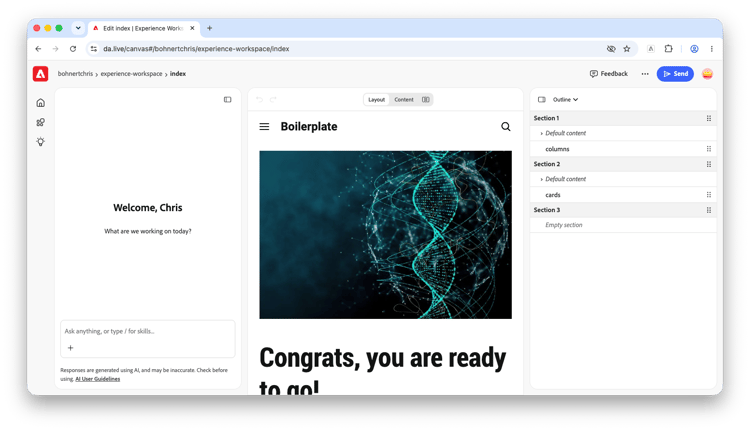
It is made up of three main areas.
- The content editor at the center
- The assistant panel to the left
- The tools panel to the right
All three areas are unified by a menu bar.
Content editor
The content editor is the heart of Experience Workspace, giving you quick access to directly edit and preview your content.
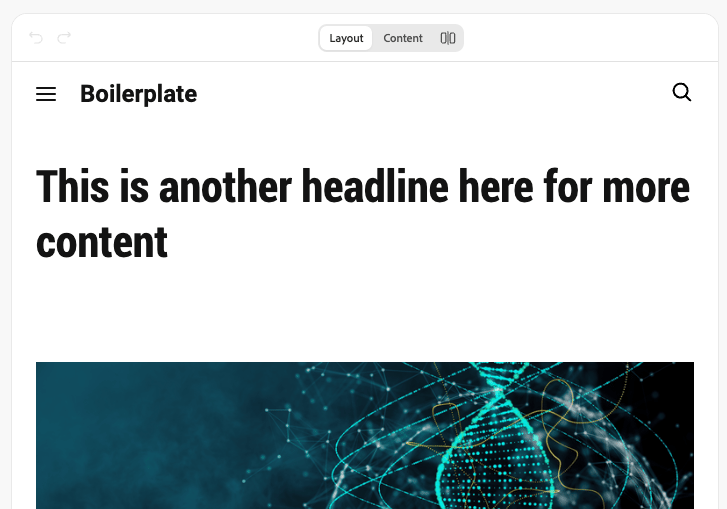
The Content Editor has three modes available in the tabs at the top of the editor.
- Layout - See your content as your readers see it. This is a what-you-see-is-what-you-get (WYSIWYG) editor.
- Content - See your content as the underlying document it is. This is helpful to understand the page’s structure.
- Split View - This places the layout mode next to the content mode for side-by-side comparisons.
Both the layout mode and content mode allow you to directly edit your content. See the document Editing Documents for more information.
Assistant panel
The assistant panel is your context-aware connection to Experience Workspace’s powerful AI. Using natural language, tell it what you want to do.
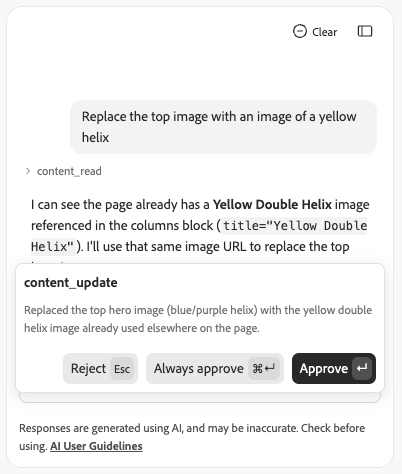
Use the collapse icon to close the assistant panel so you have more room for the content editor.

See the document Assistant Panel for more details.
If you do not see the assistant panel or the icon to show it, it may have been disabled for your organization or site level.
Tools panel
The tools panel gives you tools to quickly access to your content both on the current page and within your project.
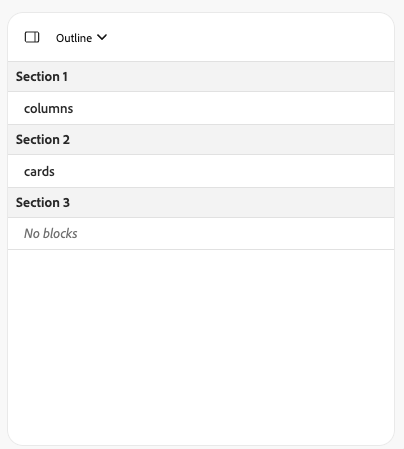
Using the dropdown at the top, you can switch between modes.
- Outline - Outline mode presents an overview of the sections of your current page.
- Files - Files mode presents the files that make up your current project.
- Versions - Open the versions window to browse the version history of the page as well as create, compare, and restore versions.
Depending on your site's or org's configuration, there may be additional options available.
Use the collapse icon to close the tools panel so you have more room for the content editor.
For more information about the content browser panel and how to navigate your content, see the document Navigating your content.
Menu bar
The menu bar is always present at the top of Experience Workspace, giving you quick access to your content structure and publishing options.
| Icon | Option | Description |

|
Breadcrumbs | These allow you to navigate the pages and resources. Click on a segment of the breadcrumb to jump to that level of your hierarchy. |
|
Feedback | Click here to quickly report an issue, report a bug, or join the discussion on our Discord server. |

|
Prepare | The ellipsis icon offers options to prepare your page for publication such as preflight checks and unpublishing. |

|
Send | Send your content to preview or publish it live. |

|
Account | Access your Adobe sign-in account, switch organizations, and sign-out. |
Additionally there are options down the left side of the window.
| Icon | Option | Description |

|
Home | Click here to jump to the Experience Workspace home page with an overview of your most recent projects |

|
Experience Workspace | Click here to return to your current Experience Workspace project (page currently in the editor). |

|
Edge Delivery Apps | Click here to access apps that add functionality to your Edge Delivery Services projects |

|
Documentation | Click here to access documentation for Experience Workspace |