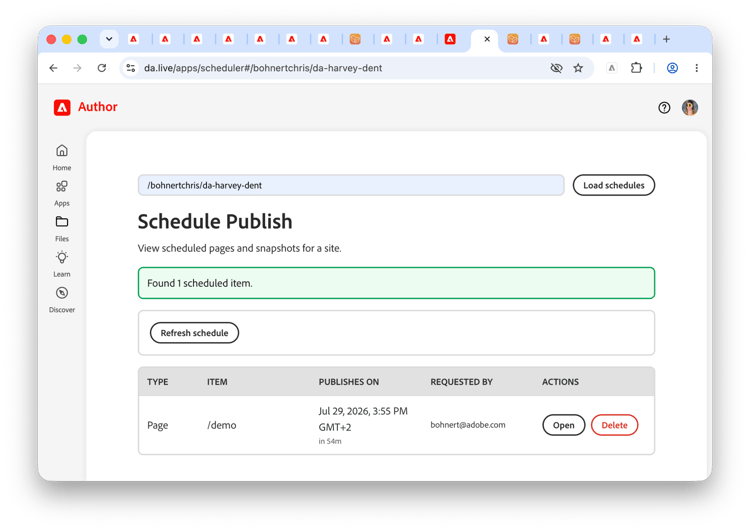
Schedule Publish
Schedule Publish is a feature-flag plugin in the Prepare menu that allows authors to queue a page or sheet to be published at a future date and time.
Enabling Schedule Publish
Schedule Publish must be explicitly enabled before it becomes available to authors.
- Edit your site config or org config.
- Add the following row to the
preparetab or create thepreparetab if it does not yet exist.
title |
path |
icon |
ref |
Schedule Publish |
- Because Schedule Publish is an Adobe-provided plugin, the
pathfield is not required. Experience Workspace will look up the plugin automatically by its title.- Use the
reffield in your prepare config to limit Schedule Publish to a specific audience, such as UAT testers, before rolling it out broadly.
- Use the
- Go to https://da.live/apps/scheduler
- Enter your org and site name in the provided field in the format
/orgname/sitename/. - Click Load schedules.
-
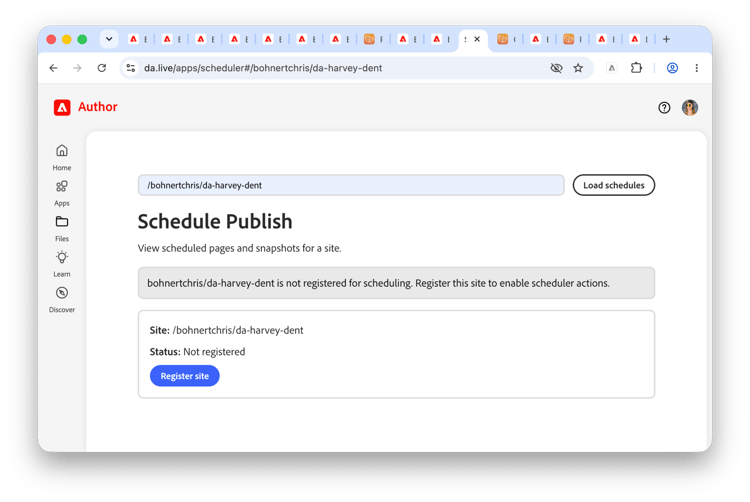
You will be told that the site is not yet registered. Click Register site.
-
The app registers your site to use the Schedule Publish feature and confirms the registration.
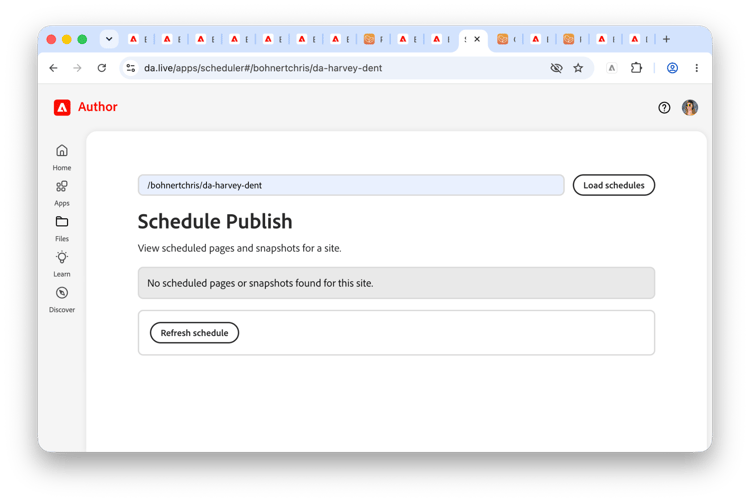
Your authors can now use the Schedule Publish feature.
Scheduling content for publication
- Open a document or sheet in Experience Workspace.
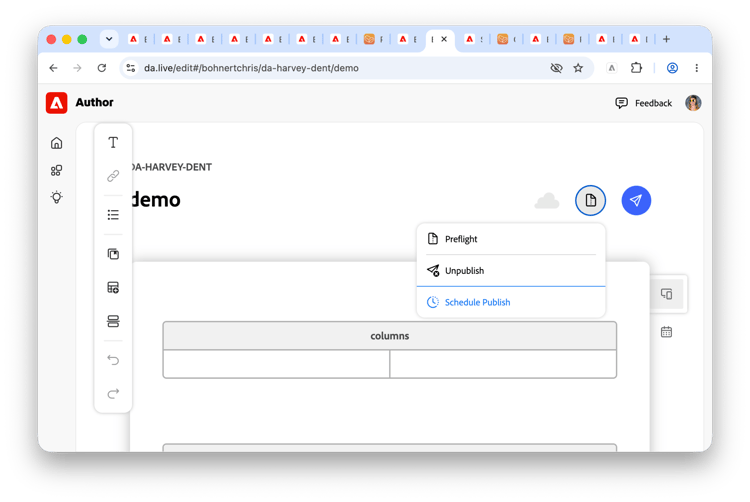
- Click the Prepare menu button.
-
Select Schedule publish.
-
Choose a date and time for the publication to occur. Enter it by hand in the format shown, or click the calendar icon to open a graphical selection.
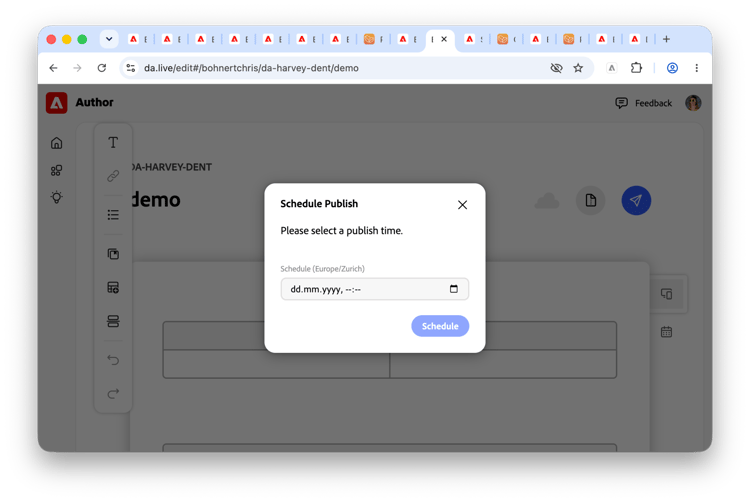
- Confirm the date and time by clicking Schedule.
The content will be automatically published at the specified time. Scheduled publications run against the content as it exists at the time of the scheduled publish, not at the time of scheduling. Make sure the document is in its final state before the scheduled time.
When you schedule a piece of content individually for publication, Experience Workspace automatically previews that content so that there is always something to publish at the scheduled time.
Managing scheduled publications
You can update a scheduled publication by editing the individual document or sheet or by viewing all scheduled publications.
Editing a document
- In Experience Workspace edit the document whose publication schedule you want to change.
- Click the Prepare menu.
- Select Schedule Publish.
- The Schedule Publish dialog opens with the previously scheduled time and date prefilled.
- Modify the date and time as necessary.
- Click Schedule to confirm the changes.
Viewing all scheduled publications
- Go to https://da.live/apps/scheduler
- Enter your org and site name in the provided field in the format
/orgname/sitename/. - Click Load schedules.
-
A list of scheduled items is presented. Click Open to open the preview of the page or Delete to cancel the scheduled publication. There is no confirmation when deleting.