Comments
Comments allow you to collaborate asynchronously with colleagues as you create content. You select a piece of content in the editor and create threaded conversations as you develop your content.
Accessing comments
You can use the tools panel to select Comments mode, or click the Comments icon in the editor menu.
If there are active comments already on the page, the Comments icon in the editor menu is badged.

Leaving comments
Comments are associated with content. To leave a comment, select a piece of content in the editor. You can do this in either Layout orContent mode.
- Open the tools panel and select Comments mode.
- Select a piece of content in the editor.
-
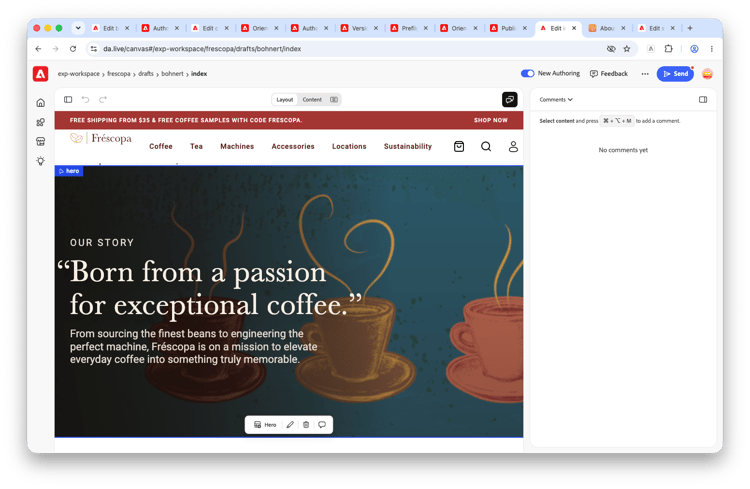
Selected content is outlined with a thin, blue box.
-
Selected content is outlined with a thin, blue box.
- Press Command + Option + M to start a new comment thread on the selected content.
-
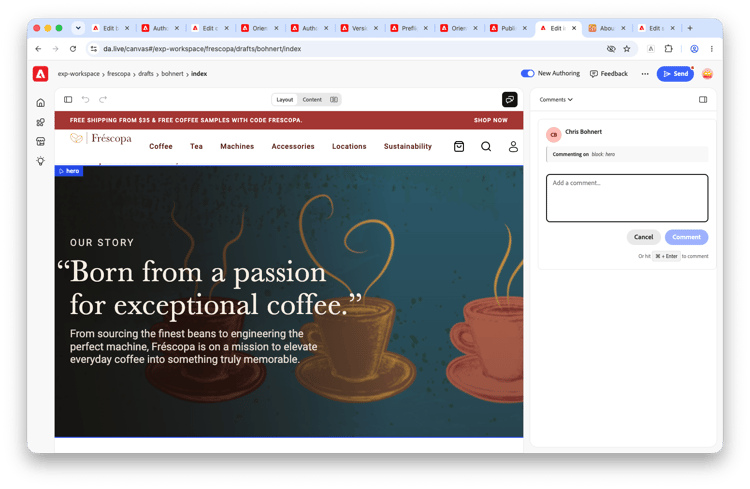
The tools panel associates your comment with the selected content.
-
The tools panel associates your comment with the selected content.
- Enter you comment in the tools panel.
- Click Comment or press Command + Enter to save.
The tool panel starts a threaded conversation about the selected content. The Comments icon in the editor toolbar is badged (when the tools panel is not showing) with the number of comments on the page, and the content that was commented on is badged within the editor with the initials of the author who commented.
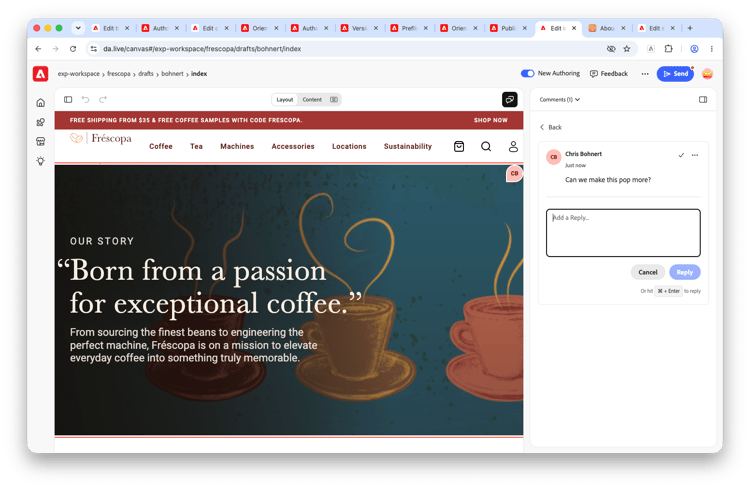
In Layout mode, the table of the content is highlighted in the same color as the badge of the user who left the comment.
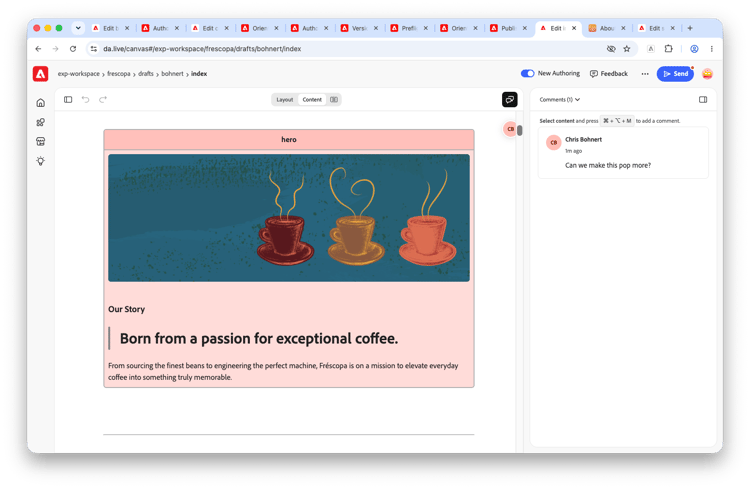
Managing comments
As your content develops, you may collect many comments for content on a page. As you and your fellow authors add comments, threads are started for every piece of content that is commented on. The tools panel shows an overview of each content thread.
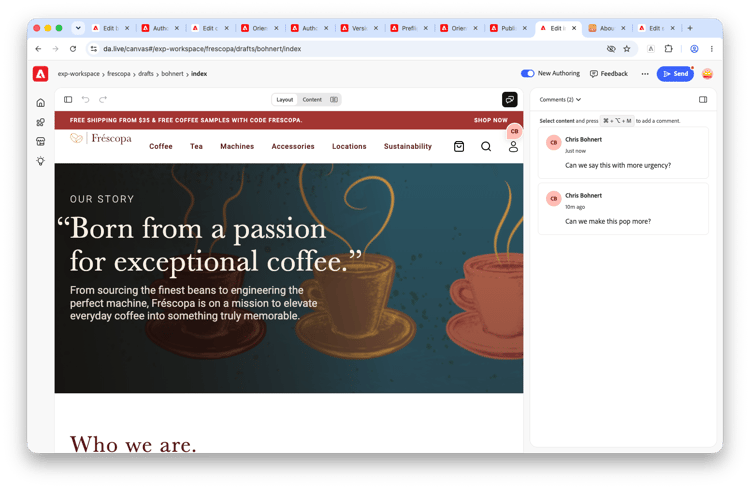
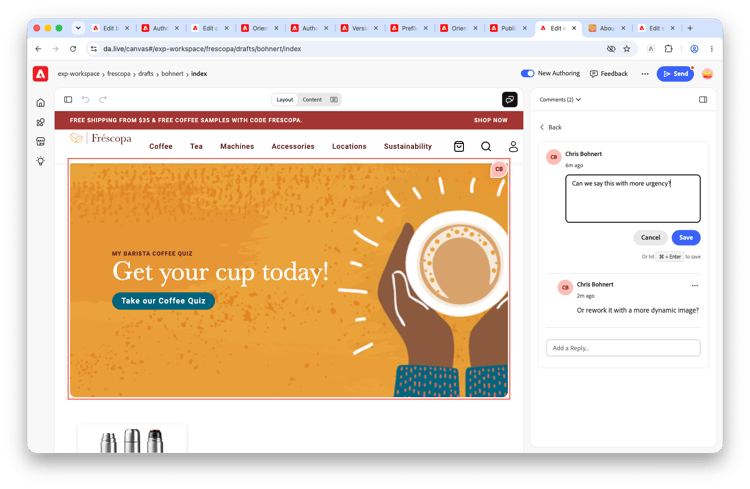
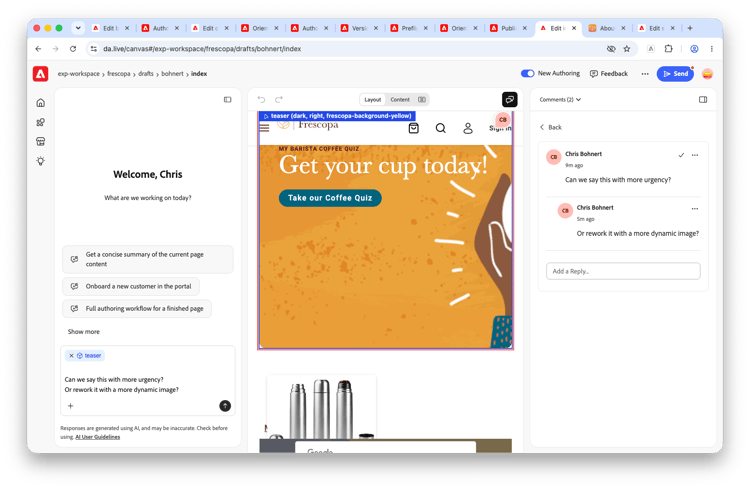
Clicking a comment in the tools panel scrolls the editor to the content item associated with the comment, outlining the content in red (in Layout mode) or darkening the background color of the content (in Content mode).
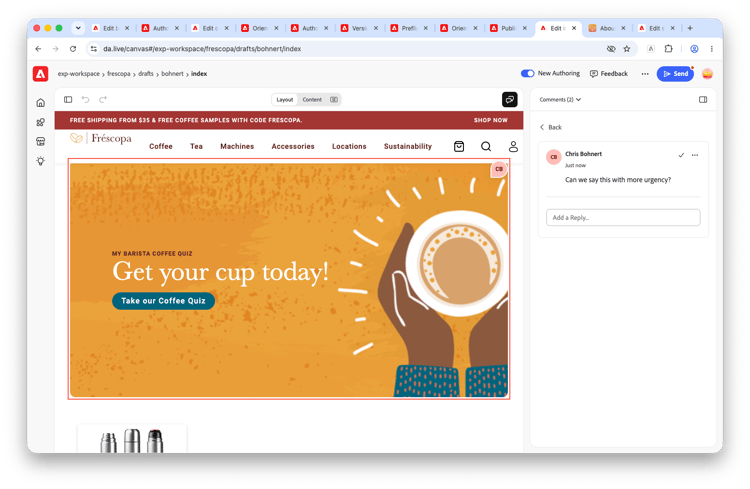
Clicking a comment thread also opens the detail of the thread in the tools panel.
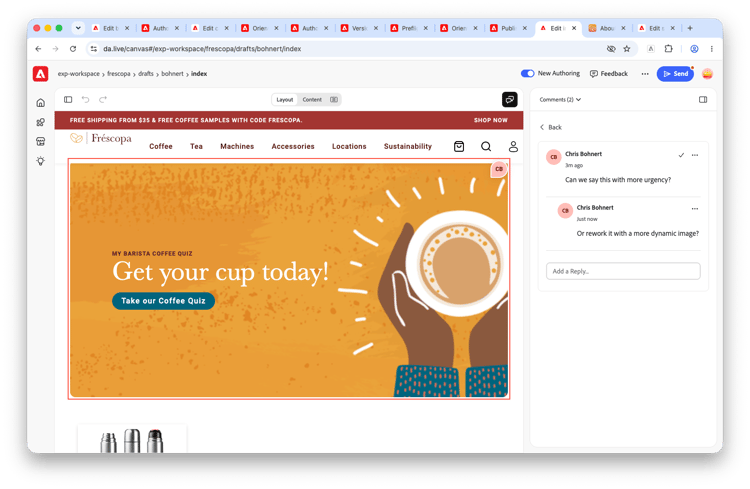
Click the Back option to return to the thread overview for the page.
Comments can help you develop the content of a page. Use the More options icon (the ellipsis) to access additional options for a comment or comment thread.
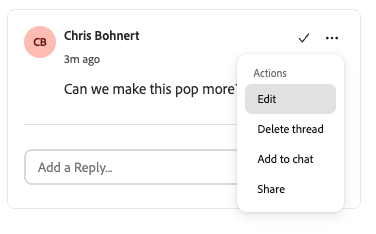
Edit
You can edit the content of comment previously left. Click Save or press Command + Enter to save the changes.
Delete thread
You can delete the entire thread.
Add to chat
Because comments are associated with content, you can send the comment thread to the assistant panel for immediate help on the suggestions in the comment.
Share
You can copy a link to the comment to the clipboard to share with colleagues.
Resolving comments
Once the required updates have been made that were discussed in a comment thread, you can mark the thread as resolved by clicking the Resolve button in the thread (the checkbox next to the ellipsis).
Resolved comment threads:
- Are no longer included in the count on the badge of the Comments button on the editor toolbar.
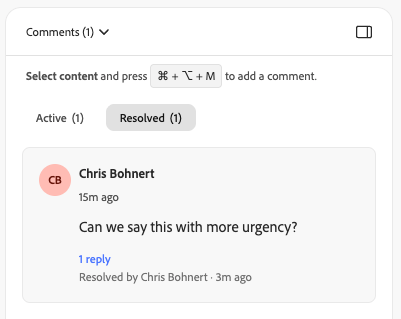
- Are moved to their own Resolved tab in the tools panel with the unresolved on an Active tab (both with counts).
- Save the user who resolved them and when.
- Can no longer have additional comments added to them.
- Can be reopened via the More options (ellipsis) button on the thread.