Developing apps & plugins
There are situations when you need to add your own features to Experience Workspace. This could either be a fullscreen app or a library plugin available while editing a document.
The Experience Workspace App SDK allows you to accomplish this while also allowing your creators to work with protected content. This allows you to build fully authenticated custom apps for your creators when you have a special use case that Experience Workspace does not cover out-of-the-box.
App or plugin?
- Fullscreen apps are great for creating first-class fullscreen experiences that can integrate with the entire Adobe Experience Cloud.
- Library plugins are great for enabling integrations into Experience Workspace's library and document editor.
Requirements
- A site - e.g.: https://main--geometrixx--aemsites.aem.live
- A page - e.g.: https://main--geometrixx--aemsites.aem.live/tools/tags.html
- A JS file - e.g: https://main--geometrixx--aemsites.aem.live/tools/tags/tags.js
The following examples use these example URLs. Adjust the provided example code to your own URLs.
App example
The SDK is based on the PostMessage API. This API allows the SDK to securely pass messages between Experience Workspace and your application. While not required, importing the SDK in HTML is recommended as it will ensure your application is ready to receive messages from Experience Workspace.
Build
/tools/tags.html
<!DOCTYPE html>
<html>
  <head>
    <title>DA App SDK Sample</title>
    <meta name="viewport" content="width=device-width, initial-scale=1"/>
    <link rel="icon" href="data:,">
    <!-- Import DA App SDK -->
    <script src="https://da.live/nx/utils/sdk.js" type="module"></script>
    <!-- Project App Logic -->
    <script src="/tools/tags/tags.js" type="module"></script>
  </head>
  <body>
  </body>
</html>
Notice that the above is a specific .html file in your code repo. This allows you to create your micro-frontend locally without having to create a shell content page in Experience Workspace. This is helpful so that the HTML can follow the same lifecycle as the feature you are building.
Despite making a .html file in your codebase, Experience Workspace will purposefully obfuscate this for your users. This ensures a consistent HTML-less URL scheme throughout their use of Experience Workspace.
- Codebase URL:
https://main--geometrixx--aemsites.aem.live/tools/tags.html - App URL:
https://da.live/app/aemsites/geometrixx/tools/tags
/tools/tags/tags.js
(async function init() {
  // eslint-disable-next-line no-unused-vars
  const { context, token, actions } = await DA_SDK;
  Object.keys(context).forEach((key) => {
    const h3 = document.createElement('h3');
    h3.textContent = `${key}`;

    const para = document.createElement('p');
    para.textContent = context[key];

    document.body.append(h3, para);
  });
}());
Test
Visit the following URL in fullscreen mode: https://da.live/app/aemsites/geometrixx/tools/tags?ref={{branch-name}}
You can also use ref=local to develop your app or plugin locally. Experience Workspace will enclose your micro-frontend in an iframe at http://localhost:3000 instead of aem.page.
Enable
The best way to notify your users of the fullscreen apps you build is to use an apps sheet in your site config (https://da.live/config#/{{ORG}}/{{SITE}}/).
title |
description |
image |
path |
ref |
Advanced search |
Milo Studio powered advanced search. |
https://milostudio--milo--adobecom.aem.live/img/tools/search.jpg |
https://da.live/app/adobecom/da-bacom/tools/ms-apps/search |
|
Fragment report |
Get a report of fragment usage |
https://report--milo--adobecom.aem.live/img/tools/report.jpg |
Visit via Experience Workspace Apps
When you enter and save the config above, a card will be placed at the top of https://da.live/apps#/{{ORG}}/{{SITE}}
Visit directly
You can also visit your app directly at https://da.live/app/{{ORG}}/{{SITE}}/{{PATH}}
Plugin example
Plugins are built similarly to apps. However, they have a few additional features in the SDK:
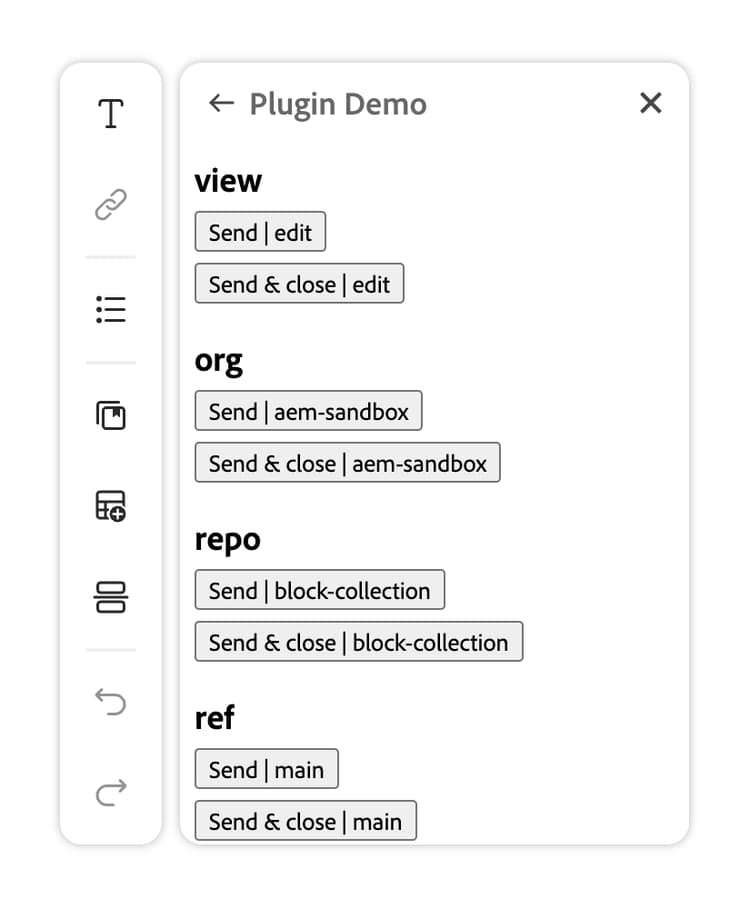
actions.sendText- Send text to the document.actions.sendHTML- Send HTML to the document.actions.closeLibrary- Close the library palette.
Build
/tools/demo.html
<!DOCTYPE html>
<html>
  <head>
    <title>DA App SDK Sample</title>
    <meta name="viewport" content="width=device-width, initial-scale=1"/>
    <link rel="icon" href="data:,">
    <!-- Import DA App SDK -->
    <script src="https://da.live/nx/utils/sdk.js" type="module"></script>
    <!-- Project App Logic -->
    <script src="/tools/demo/demo.js" type="module"></script>
  </head>
  <body>
  </body>
</html>
/tools/demo/demo.js
import DA_SDK from 'https://da.live/nx/utils/sdk.js';

(async function init() {
  const { context, token, actions } = await DA_SDK;
  Object.keys(context).forEach((key) => {
    // Heading
    const h3 = document.createElement('h3');
    h3.textContent = `${key}`;

    // Send button
    const send = document.createElement('button');
    send.textContent = `Send | ${context[key]}`;
    send.addEventListener('click', () => { actions.sendText(context[key]); });

    // Send & close
    const close = document.createElement('button');
    close.textContent = `Send & close | ${context[key]}`;
    close.addEventListener('click', () => {
      actions.sendText(context[key]);
      actions.closeLibrary();
    });

    document.body.append(h3, send, close);
  });
}());
This will create the following library plugin experience: