Developing for layout view
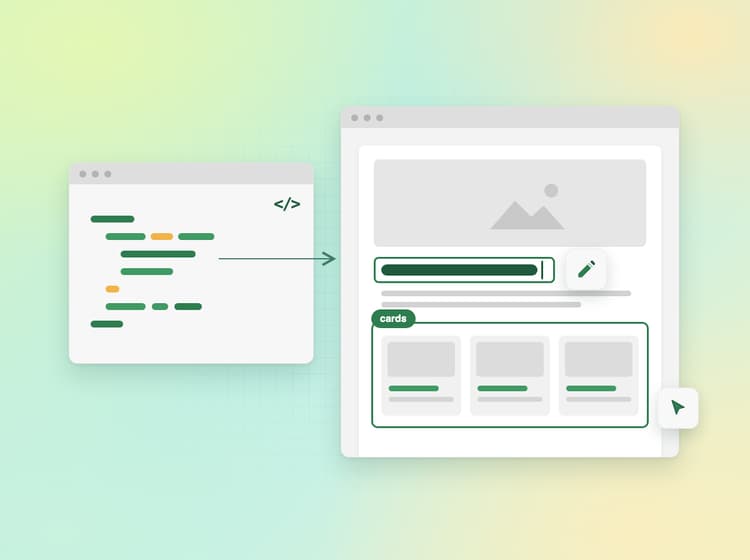
Layout view lets authors edit a page in Experience Workspace as readers will see it. It renders the page with your site's real code, so how you write blocks affects what authors can edit.
Most sites work without changes. This page covers the requirements and the patterns that keep blocks editable.
How layout view works
Requirements
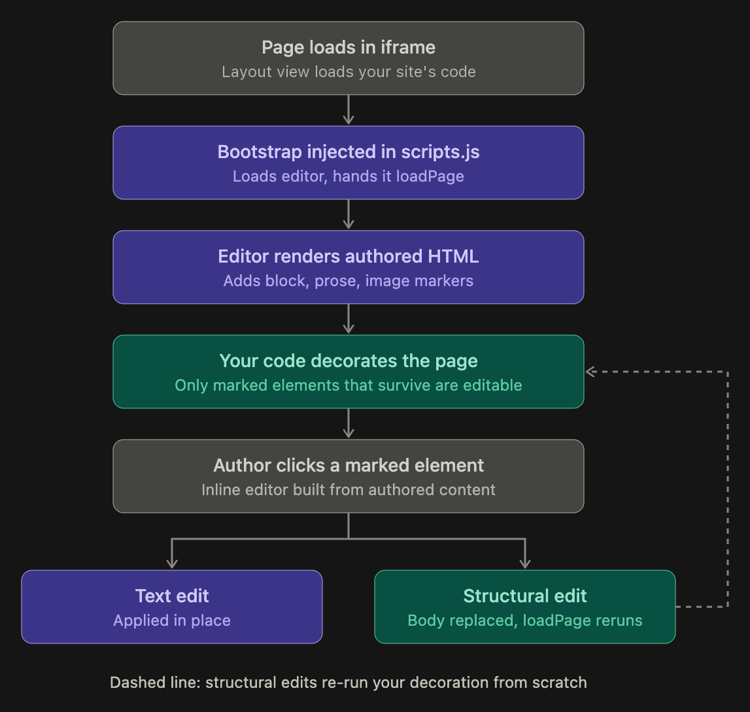
Layout view adds a small bootstrap script to your entry script. Your site needs:
head.htmlloads your entry script with<script src="/scripts/scripts.js">. The bootstrap is only added to the first script namedscripts.js.scripts.jsdefines a top-levelloadPagefunction, as in the boilerplate.- Off-origin requests (APIs, fragments from other sites, fonts) must allow the layout view origin,
https://{BRANCH}--{SITE}--{ORG}.preview.da.live, in their CORS settings.
Guidelines
Keep the block element
The block's outer element carries data-block-index, and its first class is the block name. Selection, the block label, the outline and moving or deleting blocks all depend on both.
Do change the block's children and add classes.
export default function decorate(block) {
  const ul = document.createElement('ul');
  [...block.children].forEach((row) => {
    const li = document.createElement('li');
    li.append(...row.children);
    ul.append(li);
  });
  block.replaceChildren(ul);
  block.classList.add('cards-grid');
}
Don't replace the block or overwrite its classes.
export default function decorate(block) {
  const wrapper = document.createElement('section');
  wrapper.className = 'cards';
  wrapper.append(...block.children);
  block.replaceWith(wrapper);
}
Move authored text, don't recreate it
Text is only editable if the original element, with its data-prose-index, is still in the page. Copying text into a new element looks the same to readers, but authors can't edit it.
Do move the authored elements and style them with classes.
card.append(cell.querySelector('h2'));

cell.classList.add('card-caption');
Don't copy or unwrap text.
const title = document.createElement('h3');
title.textContent = cell.querySelector('h2').textContent;
card.append(title);

cell.textContent = cell.querySelector('p').textContent;
If you must replace an element, carry data-prose-index over.
const original = cell.querySelector('p');
const replacement = document.createElement('h3');
replacement.append(...original.childNodes);
if (original.dataset.proseIndex) replacement.dataset.proseIndex = original.dataset.proseIndex;
original.replaceWith(replacement);
Don't decorate inside text elements
When an author clicks a text element, the inline editor rebuilds it from the document. Icons, spans or classes your code added inside or on that element (including on list items) disappear.
Do decorate a wrapper outside the text element.
const wrapper = document.createElement('div');
wrapper.className = 'title-with-icon';
heading.before(wrapper);
wrapper.append(icon, heading);
Or use CSS on an ancestor.
.features ul li::before {
  content: '';
  background: url('/icons/check.svg') no-repeat center / contain;
}
Don't inject markup into or onto authored text.
heading.prepend(icon);
heading.classList.add('has-icon');
list.querySelectorAll('li').forEach((li) => li.classList.add('check'));
Avoid position-based CSS on text elements
While an author edits a text element, it's wrapped in extra div elements. Selectors that depend on its parent or siblings stop matching, and the layout shifts while the author types.
Do use descendant selectors, and mark specific cells from JavaScript.
.hero p { font-size: var(--body-font-size-l); }
.columns .columns-eyebrow p { text-transform: uppercase; }
block.querySelectorAll(':scope > div > div:first-child').forEach((cell) => {
  cell.classList.add('columns-eyebrow');
});
Don't use child or sibling combinators on text elements.
.hero > div > p { font-size: var(--body-font-size-l); }
.cards h3 + p { margin-top: 0; }
.columns > div > div > p:first-child { text-transform: uppercase; }
Keep image attributes
Authors select images by clicking them and replace them by dragging a file onto them. Both rely on the data-image-index and data-image-version attributes on the img. Replacing only works for images inside a picture.
Do copy the data-image-* attributes to the new image.
block.querySelectorAll('picture > img').forEach((img) => {
  const picture = createOptimizedPicture(img.src, img.alt, false, [{ width: '750' }]);
  const newImg = picture.querySelector('img');
  [...img.attributes]
    .filter(({ name }) => name.startsWith('data-image-'))
    .forEach(({ name, value }) => newImg.setAttribute(name, value));
  img.closest('picture').replaceWith(picture);
});
Don't create new pictures without the original attributes.
block.querySelectorAll('picture > img').forEach((img) => {
  img.closest('picture').replaceWith(createOptimizedPicture(img.src, img.alt, false, [{ width: '750' }]));
});
Do keep the picture and position it with CSS.
.hero picture img {
  position: absolute;
  inset: 0;
  width: 100%;
  height: 100%;
  object-fit: cover;
}
Don't turn authored images into CSS backgrounds.
const img = block.querySelector('img');
block.style.backgroundImage = `url(${img.src})`;
img.closest('picture').remove();
Images must be in the page when loadPage() finishes. Images your code adds later, for example from a timer or an IntersectionObserver, can't be replaced by dragging.
Make your code safe to re-run
Structural edits, such as adding or moving a block, replace the page body and run loadPage() again. Your block code runs again on fresh DOM, but global listeners, timers and module-level state from the previous run are still there.
Do scope state to the block and clean up once it's gone.
export default function decorate(block) {
  const controller = new AbortController();
  const timer = setInterval(() => {
    if (!block.isConnected) {
      controller.abort();
      clearInterval(timer);
      return;
    }
    nextSlide(block);
  }, 5000);
  window.addEventListener('resize', () => layout(block), { signal: controller.signal });
}
Don't keep one-time state or add global listeners on every run.
let initialized = false;

export default function decorate(block) {
  if (initialized) return;
  initialized = true;
  window.addEventListener('resize', () => layout(block));
  setInterval(() => nextSlide(block), 5000);
}
The same applies to scripts.js. loadEager, loadLazy and anything else called from loadPage must not add duplicate listeners or elements to document, window or head.
Do guard them so they're only added once.
let shortcutsBound = false;

async function loadLazy(doc) {
  if (!shortcutsBound) {
    document.addEventListener('keydown', handleShortcuts);
    shortcutsBound = true;
  }
  // ...
}
Don't add global handlers unconditionally.
async function loadLazy(doc) {
  document.addEventListener('keydown', handleShortcuts);
  // ...
}
Testing your changes
Layout view loads code from your main branch. To try a block from another branch in layout view before merging, use the developer plugin. Then type into each text field, click and replace each image, and move the block to check that it still works.