
Favicon
Adding a favicon to your site gives it a professional look in your visitor’s browsers:
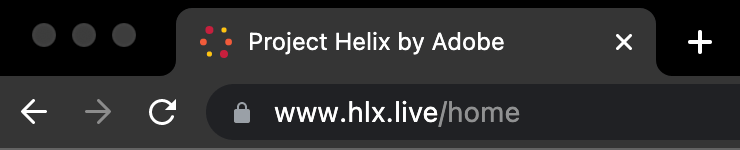
Adding a favicon
The easiest way is to add a file called favicon.ico to the root folder in your code repository. We recommend using the .ico format for best support across all major browsers. That’s all – your site now has a favicon!
Gone repoless?
If you are reusing the same code repository for multiple sites (see Repoless) and you need different favicons for some or all of them, you can add the favicon.ico file to the root folder of each content source instead, and preview and publish it using the Sidekick or Admin API.
Using AEM Authoring?
When you use AEM Authoring as a content source, the favicon is managed as a DAM asset rather than a file in your code repository.
Simple site
- Upload
favicon.icoto a DAM folder (for example,/content/dam/my-site/). - Assign the site's EDS cloud configuration to that DAM folder (see Assigning a configuration to an asset folder).
- Add a path mapping entry to map the DAM path to the site root:
/content/dam/my-site/favicon.ico:/favicon.ico - Preview and publish the favicon asset.
Repoless sites with shared repo
If you run multiple sites from a shared code repository (repoless) and all of your sites should use the same favicon, a single shared favicon in the code repository is enough — no per-site setup required. If you want different favicons per site, a few more steps are required
Each site needs its own DAM folder with that site's cloud configuration assigned containing the favicon for that site. Each site adds its own path mapping to the corresponding site config:
Site A:
/content/dam/site-a/favicon.ico:/favicon.ico
Site B:
/content/dam/site-b/favicon.ico:/favicon.ico
Both map to /favicon.ico but publish different assets to their respective site origins.
Includes caveat
If your site uses custom includes in its path mapping configuration, the DAM path must be covered by the includes list.
The default include (/content/) covers /content/dam/ paths, so no extra include is needed if the default is in place.
If custom includes are set (for example, only /content/mysite/), the DAM folder must be explicitly added to includes:
includes: ["/content/mysite/", "/content/dam/mysite/"]
Previous
Fastly Setup
Up Next