
Custom structured content editor
Structured content lets authors enter data in a form based on a schema. Experience Workspace provides a default editor, and projects can also configure a custom editor for selected folders. This guide describes a general-purpose custom editor that combines a form-based authoring experience with a visual schema manager.
Use the schema manager to define the fields and rules for a content type, then let authors create and edit documents that follow that schema. The structured data can be delivered as JSON for Edge Delivery Services blocks and other consumers. For the underlying concepts and delivery options, see Structured content and Schema for structured content.
Configuring the custom editor
To set up a folder for the custom editor, you must:
- Fulfill the prerequisites.
- Create a folder for structured content.
- Map the folder to the custom editor.
- Create a schema for the content.
- Create and edit documents using that schema.
Prerequisites
To configure and use the editor, you need:
- An Edge Delivery Services project with Experience Workspace enabled, or the ability to create a project.
- Permission to configure the
editor.pathsetting in the organization configuration. - Appropriate content author permissions to create and edit folders, documents, and schemas for the site. Previewing and publishing also require the corresponding permissions.
If you do not have the required permissions, contact your organization administrator.
Create structured content storage
- Navigate to your project in Experience Workspace at
https://da.live/#/<ORG>/<SITE>. - Create a folder for the documents, for example
/coffees. Choose a meaningful name for the content it will contain.
The editor mapping applies to the folder path you configure. You can use different folders for different content types or editor experiences.
Enable the custom editor
Configure Experience Workspace to open the custom editor for the folder:
- Open the organization configuration at
https://da.live/config#/<ORG>/. - Add an entry with the following key and value, replacing the placeholders with your organization, site, and folder names:
key |
value |
editor.path |
/<ORG>/<SITE>/<FOLDER_NAME>=https://da.live/app/aemsites/sc-editor/form# |
For example, the path portion for a folder named coffees is /<ORG>/<SITE>/coffees. Keep the trailing # in the editor URL. Add a separate editor.path entry for each folder you want to map.
You can also open a document directly at https://da.live/app/aemsites/sc-editor/form#/<ORG>/<SITE>/<PATH_TO_DOCUMENT>. Open the app through DA and approve access if prompted. The path identifies the content document, not the repository that hosts the editor app.
Create and manage schemas
A schema defines the properties authors can fill in, their types, and validation rules. The visual schema manager lists the schemas available to one site and lets you create or edit them without writing the entire JSON Schema by hand.
- Open
https://da.live/app/aemsites/sc-editor/schemas#/<ORG>/<SITE>, replacing the placeholders with the target content site. - Select an existing schema or click New schema. For a new schema, enter a unique lowercase name containing letters, numbers, and hyphens, such as
coffee. You can also provide a display title and description in Schema settings. - Add properties and configure their types and rules. Apply each dialog's changes, then click Save in the schema manager.
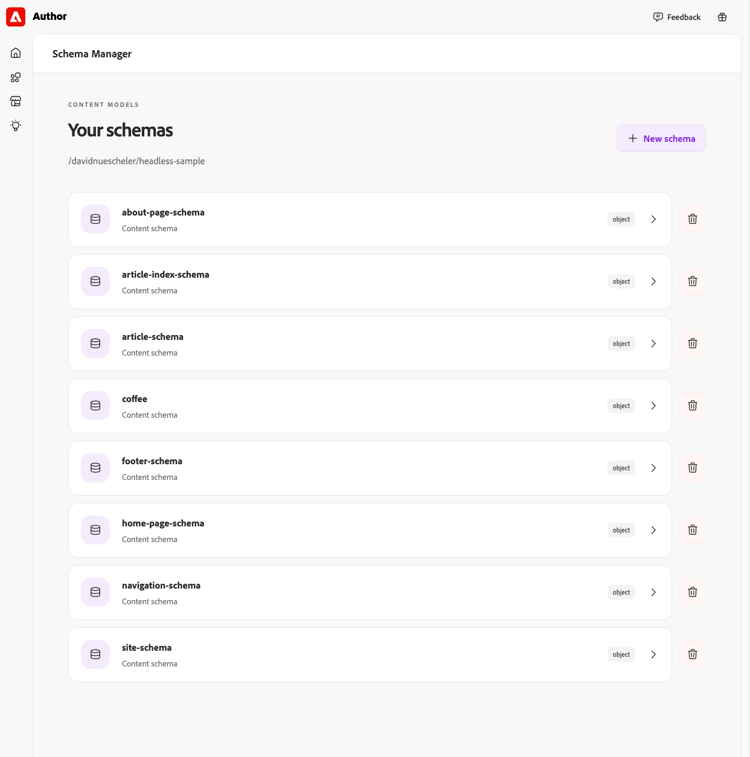
Schemas are stored as DA HTML documents under /<ORG>/<SITE>/.da/forms/schemas/, with the JSON Schema in a code block. Saved schema file names cannot be changed in the manager. The manager checks for existing names when creating a schema.
Define properties
Each property appears as a card showing its name, type, and relevant indicators such as Required or the number of choices. Select a card to edit it, or use Add property to add a field. Property names are keys in the structured data; display titles and descriptions help authors understand what to enter.
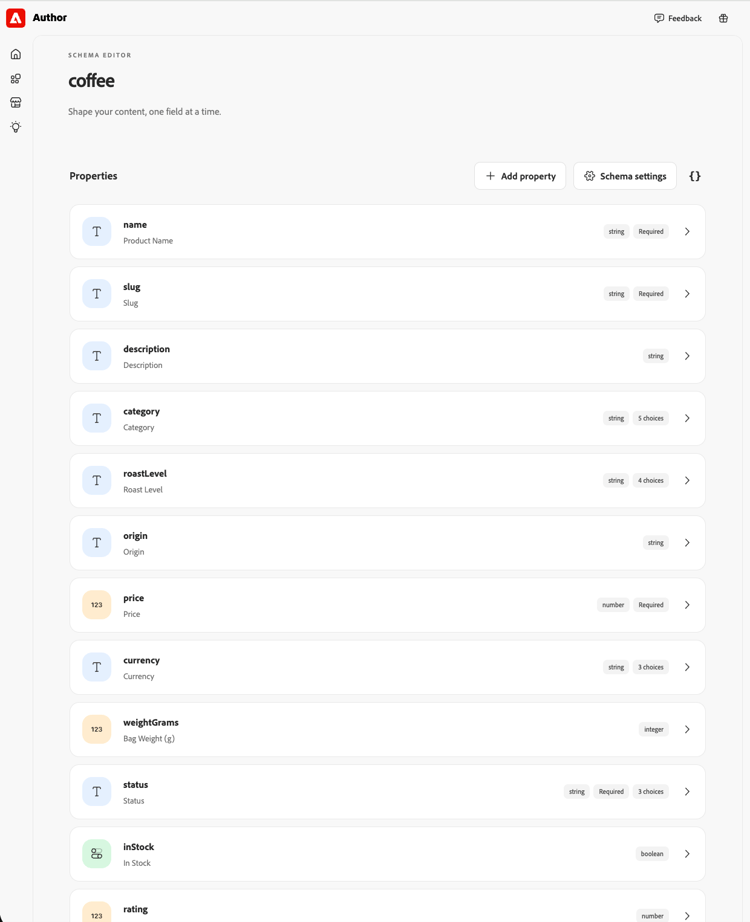
The visual editor supports string, number, integer, boolean, object, array, and local reference types. You can mark properties as required or read-only, define allowed values, and set supported length, numeric, and array-size constraints. String properties can also use date, date-time, or time formats and a regular-expression pattern.
Expand Advanced configuration in a property dialog to access settings such as read-only, semantic type, allowed values, and constraints. The semantic type can make a string a multiline Long text field or an HTML rich-text field. These are editor-specific extensions rather than standard JSON Schema keywords.
Use Apply changes to apply the dialog's draft to the schema. Cancel leaves the schema unchanged. Applying a dialog is not the same as saving the schema: click the header's Save button to persist your changes. The {} button beside Schema settings opens a read-only JSON Schema preview, including applied but unsaved changes.
Nested properties and reusable definitions
Object properties can contain child properties, which appear as cards in the object dialog. Arrays use an item schema to define the type of each entry; an item can itself be an object or another array. Open the Array item card in advanced configuration to edit it.
For structures used in more than one place, create a reusable definition in the Reusable definitions section and use a local reference such as #/$defs/faq in a reference property. The following example shows an object definition containing question and answer properties:
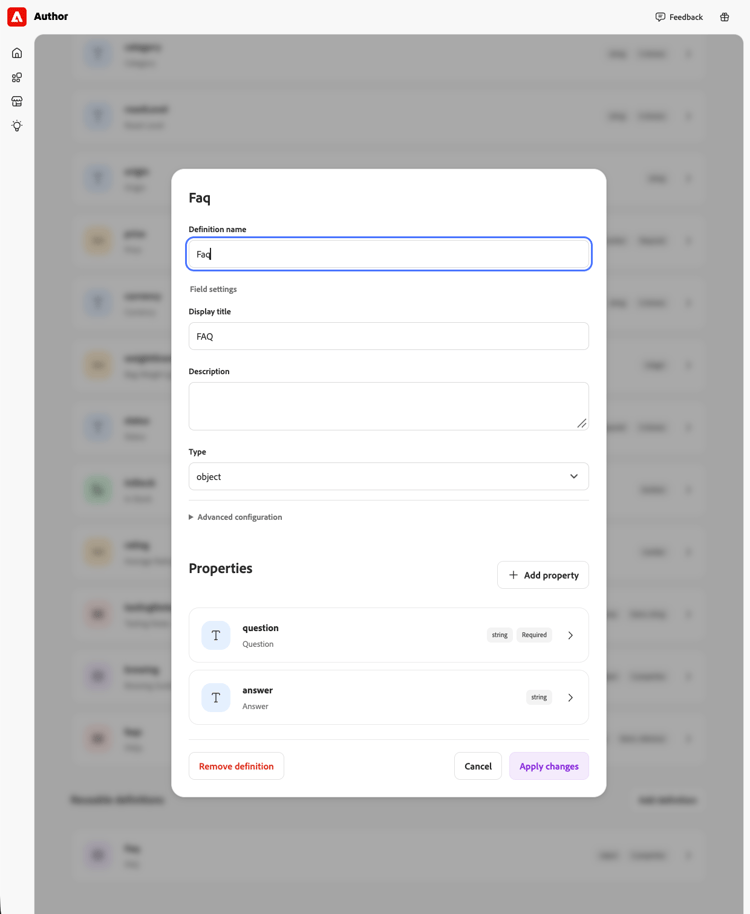
Changing a property type can remove its type-specific settings or nested properties. The editor asks for confirmation when configured settings would be discarded. Removing or changing properties does not migrate existing documents, so review the impact on existing content and consumers before saving.
Delete a schema with the trash icon in the schema list or Delete schema in the editor. Deletion requires confirmation and is permanent. Documents that use the deleted schema are not migrated and may no longer open in the form editor.
Create and author structured content
- Navigate to the configured content folder in Experience Workspace, for example
https://da.live/#/<ORG>/<SITE>/coffees. - Use the plus icon to create a Document and give it a name, such as
light-roast. - Open the document in the custom editor. For an empty document, choose a schema from the available cards. For an existing structured-content document, the editor loads its referenced schema.
- Enter the values and resolve any validation errors. Click Save to persist the document.
The editor may suggest a schema with an Auto-selected badge based on other HTML documents in the same folder. It examines up to three siblings and suggests a schema only when at least two match and none of the checked documents conflict or are unrecognized. The suggestion is not applied automatically: select the card to continue. If the check fails, you can still choose a schema manually.
Choosing a schema alone does not count as an edit or save the document. Make a field change and save it to persist the structured-content document. The editor accepts an existing empty document or a document with structured-content metadata; it refuses ordinary page content rather than overwriting it.
Work with fields and arrays
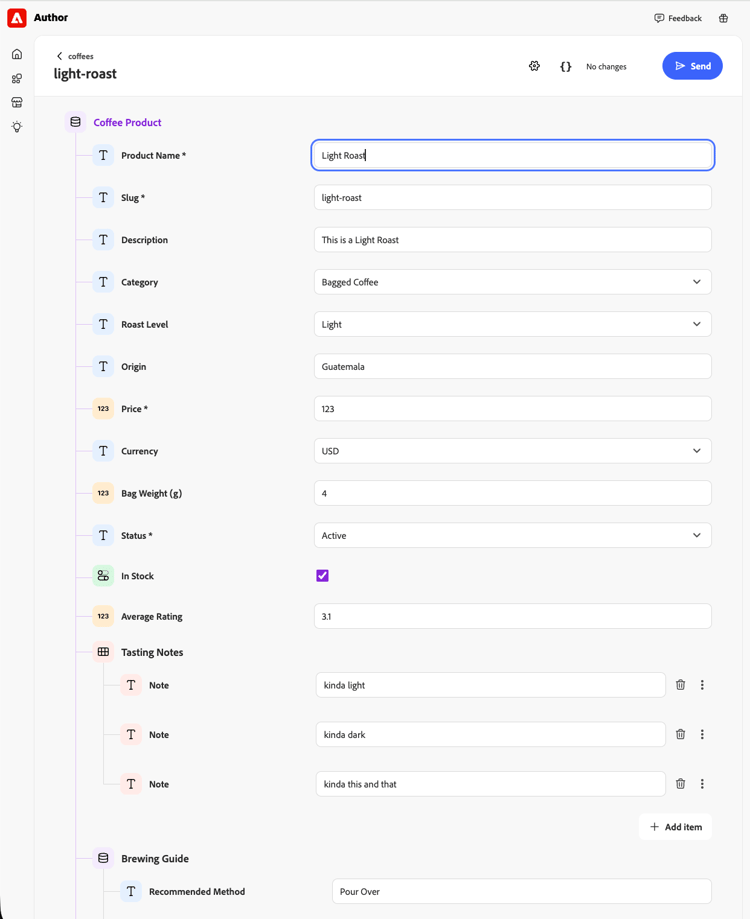
The form displays fields according to the schema. Type icons and tree guides indicate the hierarchy of nested objects and arrays. Required fields are marked with an asterisk, and validation errors must be resolved before saving. Read-only fields cannot be edited.
For an array, click Add item to add an entry and the trash icon to remove one. Reorder editable items with the drag handle, or focus the handle and use the Up and Down arrow keys. The add button appears beside an empty array's heading or below the last item when the array contains entries. Schema limits can prevent adding or saving items.
For an HTML field, use the formatting toolbar for paragraphs, headings, bold, italic, lists, and links. Select text to add a link; click or place the cursor in an existing link to edit its text or URL or remove it. Pasted content is inserted as plain text. The visual editor uses paragraphs rather than divs; unsupported existing markup is shown in a source textarea so it is not silently discarded.
The gear icon opens the document's schema in the schema manager in a new tab. Save schema changes and reload the form editor to use the updated schema. The {} button opens a read-only view of the current content JSON, including unsaved edits. The folder link above the document name returns to the parent folder.
Save, preview, and publish
Saving is explicit. When you change a field, Save appears and Send is hidden. Resolve validation errors and click Save; saving updates DA source but does not publish it. Changes made while a save is in progress remain unsaved. If you leave with unsaved edits, the editor prompts before discarding them.
When there are no unsaved changes, click Send and choose Preview or Preview & Publish. The panel shows available status information and links that you can open or copy. Click Update to run the selected action. Publishing first previews the document, then publishes it. Errors are displayed if an operation fails; use Refresh status to retry a status check.
Consume the structured content
Once previewed or published, structured content can be consumed as JSON. For the delivery endpoint format, protected content, indexing, and examples, see the delivery endpoint and listing and querying sections of the structured content guide.
An HTML field is delivered as a string containing markup, not as a separate JSON object. The HTML option stores x-semantic-type: "long-text" and the custom hint x-content-type: "html" in the schema. Consumers that display that string as HTML are responsible for handling it safely.
Limitations
- The custom apps use the production DA source API and legacy AEM admin endpoints. Migrated AEM source storage and stage or local DA backends are not supported by this implementation.
- Deployment uses the content site's
mainbranch. This custom Send flow does not read Experience Workspace editor configuration or run EW preflight; use EW when your workflow requires those checks. - There is no collaborative editing or conflict resolution. Avoid editing the same document simultaneously in another editor.
- The visual schema editor preserves unexposed settings when possible, but not every JSON Schema construct can be edited visually. Malformed schema JSON and unsupported constructs may require a separate schema editor. See the structured content schema specification for supported constructs.
- Changing a schema does not automatically migrate existing documents. Deleting a schema can prevent documents that reference it from opening.
Troubleshooting
The custom editor does not open
Check that the case-sensitive folder path and the complete custom app URL, including its trailing #, are correct in the editor.path entry. Confirm that you can access the configuration and the target site. The app must be opened through DA; opening its HTML file directly does not provide DA authentication.
A schema is missing or a document will not open
Confirm that the schema was saved for the correct organization and site and that you have permission to access it. An existing document must reference an available schema and contain structured-content metadata. The editor will not overwrite a normal page or silently create a missing source document.
Save or Send is unavailable
Check for required fields, validation errors, unsupported schema issues, and array limits. Save unsaved changes before using Send. For preview or publish errors, check your permissions and retry the status check. If your site requires EW preflight or other EW-specific controls, follow the corresponding EW workflow.