
Assistant panel
The assistant panel is available in most windows of Experience Workspace. It is your natural-language interface to the agentic powers of Adobe Coworker.
If you do not see the assistant panel or the icon to show it, it may have been disabled for your organization or site level.
Orientation
The assistant panel is laid out as in a familiar chat interface. In the chat box, enter your request in natural language and press enter or click the send button (arrow icon). The assistant loads with a selection of recommended prompts to get started. Click on one to prepopulate the prompt.
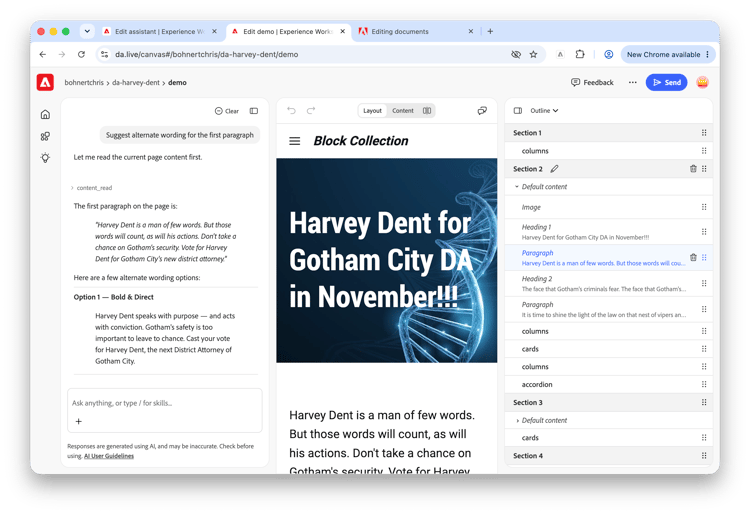
Use the plus button to attach additional information.
- Files or images - Opens a file browser to select files from your local machine
- Prompt - Opens a menu to select from predefined prompts for common tasks
- Type to filter the prompts or use the chevron next to the type to filter by prompt type.
- Command - Opens a selection of pre-defined commands to run
- Enter a slash (
/) in the chat for quick access to commands.
- Enter a slash (
From the plus menu you also have quick access to Manage Prompts as part of your site config as well as to manage your skills viaManage Coworker.
Your dialog with the assistant appear as a chat in the panel.
- Your requests are right-aligned.
- Responses from the assistant are left-aligned.
Hover over an assistant request to reveal a copy icon to copy the response to your clipboard.
Once you begin an interaction with the assistant, you can clear your chat at any time by clicking the Clear button at the top of the assistant panel.
Confirmations
Whenever you make a request that could make a change or requires access, the assistant will ask for your confirmation before continuing.
Notice
Responses are generated using AI, and may be inaccurate. Check before using. Please see our AI User Guidelines.