
About Experience Workspace
Experience Workspace is an intelligent authoring surface where humans and AI agents collaborate to build, edit, and optimize digital experiences.
Overview
Content today is created everywhere: by agents, LLMs, automated pipelines, and authors in AEM. But regardless of where content originates, teams still need a central place to review, collaborate, approve, and deploy it with confidence.
Experience Workspace is that place. It is an authoring surface built for the agentic age: where human creativity and AI capabilities meet to take content from ideation to publication.
Through a visual editor, integrated AI Assistant, and deep enterprise context, Experience Workspace gives content creators everything they need in one surface. Through MCP, it connects to any Adobe or third-party tool or skill, ensuring the workspace fits into how your team already operates.
Here’s what it does.
Authoring
Create content with intuitive tools:
- Visual editor with a WYSIWYG canvas
- AI Assistant for quick access to prompts and skills
- Multi-user and agent support for human/AI collaboration
- Assets integration for quick access to AEM Assets
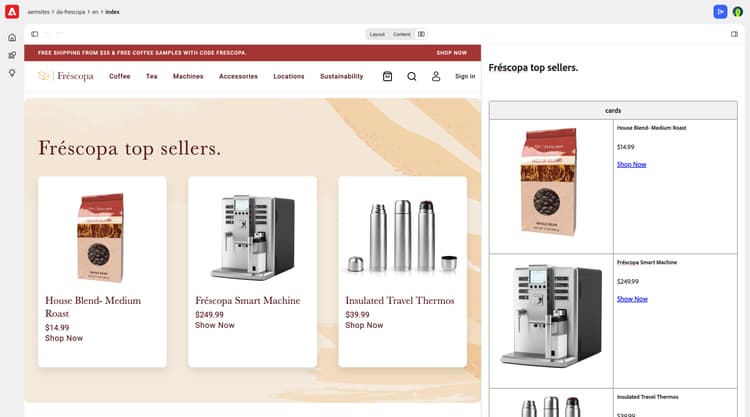
See the document Editing documents for details on how to author using Experience Workspace.
Intelligence
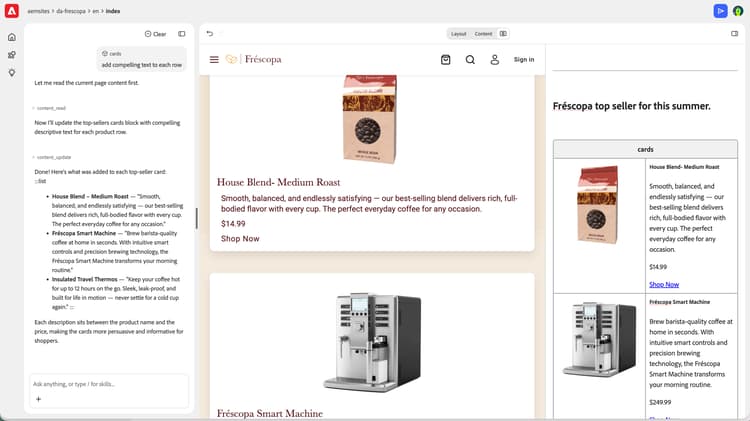
Optimize content with a system that knows your brand:
- Enterprise context provides brand identity, marketing signals, and key data
- Author memory learns over time to build skills and improve velocity
- MCP, agents, and skills connect any Adobe or third-party app
- Optimization opportunities surfaced from site insights and external signals
Operations
Publish and manage with control:
- CMS capabilities to manage, publish, schedule, and generate workflows
- CMS skills management to extend and customize the CMS
- MCP support for integration into LLM pipelines
- REST API for API-first access
Prerequisites
You need to have an Edge Delivery Services project configured with Experience Workspace as the content source. To get started, you can either use the boilerplate provided in the tutorial or use the Experience Modernization Agent to migrate any existing website to Edge Delivery Services and Experience Workspace.
Setup
If you want to easily enable Experience Workspace, you can use a guided starting point. Go to Enable Experience Workspace.
If the link above does not work for you, read the following sections.
Manual setup walkthrough (No Audio)
https://www.youtube.com/watch?v=5zCwKmR07c8&feature=youtu.be
Setting up Experience Workspace consists of a) adding quick edit to your codebase, and b) configuring the project to use the Experience Workspace editor instead of the default editor.
Configuration
Experience Workspace behavior can be customized using flags.
Flags are configured in the flags sheet. Each flag consists of a key-value pair that controls a specific Experience Workspace feature or behavior.
Some flags can be configured at either the org level or the site level. Org-level flags apply to all sites within the org. Site-level flags apply only to the specific site and override the org-level value when both are defined.
Adding a flag
- Open the configuration where you want to set the flag:
- Site:
https://da.live/config#/<your-org-name>/<your-site-name> - Org:
https://da.live/config#/<your-org-name>
- Site:
- Select the
flagssheet or create it if one does not already exist. - Add the required flag configuration described below.
- Save your configuration.
Enable Experience Workspace
Experience Workspace is disabled by default. To enable it, add the following flag.
| key | value |
ew.enabled |
true |
Disable assistant
The assistant is enabled by default on Experience Workspace. To disable it, add the following flag.
| key | value |
ew.disableChat |
true |
Default canvas layout
The canvas editor opens in Layout view by default. To change the default for a site, add the following flag.
| key | value |
ew.canvasDefaultView |
split |
The flag supports the following values: layout (default), content, or split. When set, all users opening the canvas editor for that site will start in the configured view. If a user manually switches views during a session, their choice takes precedence for the remainder of that session.
Default panel view
The canvas editor opens with the Outline panel selected by default. To change the default panel for a site, add the following flag.
| key | value |
ew.canvasDefaultPanel |
files |
The flag supports the following values: outline or files. Library panels can also be targeted using the name of an enabled library item (for example, blocks or templates). You can see your available library items in your site configuration within the library sheet (if it exists). When set, all users opening the canvas editor for that site will start with the configured panel selected. If a user manually switches panels during a session, their choice takes precedence for the remainder of that session.
Sidekick configuration
When using Experience Workspace, the AEM Sidekick should open content in the Experience Workspace editor rather than the default editor. This is controlled by the editUrlPattern in your site's Sidekick configuration. See the Sidekick development guide for more on custom edit URLs.
The Sidekick configuration is managed through the following Admin API:
| API | URL |
| Config | https://admin.aem.live/config/ORG/sites/SITE/sidekick.json |
Set the editUrlPattern as follows so links open in the Experience Workspace Canvas:
sample (json)
 "sidekick": {
    "project": "My Project",
    "editUrlPattern": "https://da.live/canvas#/{{org}}/{{site}}{{pathname}}"
  }
Replace ORG and SITE in the API URL with your organization and site names.
What about Google docs, Sharepoint, AEM Authoring, and headless use cases?
Managing your content as Google docs or Office docs within Sharepoint is still supported for aem.live projects. However Google and Word docs are designed for managing written documents.
Experience Workspace is focused on creating lightweight web content documents. Your content is surfaced as documents with all the tools you need to create and deliver web content.
AEM Authoring remains fully supported on aem.live. However new projects are encouraged to use the rich new features of Experience Workspace.
For headless use cases, the Universal Editor is still recommended.