Navigate your content
Experience Workspace is an intelligent authoring surface where humans and AI agents collaborate to build, edit, and optimize digital experiences. Learn how to navigate your content in order to edit it within Experience Workspace.
Overview
Experience Workspace places your content front-and-center. However you need to be able to find your content quickly. Therefore Experience Workspace offers two main mechanisms for content navigation.
- Breadcrumbs and the content browser - Use the breadcrumbs always at the top of the Experience Workspace window to quickly jump to the content browser at a certain point in your content hierarchy.
- Tools panel - Use the tools panel to jump between files in your current project without leaving your current Experience Workspace project.
Breadcrumbs and the content browser
The breadcrumbs are always at the top of the Experience Workspace window. They indicate where in your content hierarchy the current page is located. In this example, we are on the index page of the experience-workspace project in the bohnertchris org.

Click on any entry in the breadcrumbs to be taken to that level of the hierarchy in the content browser. For example if we click on the experience-workspace project name the content browser loads with the resources at that level.
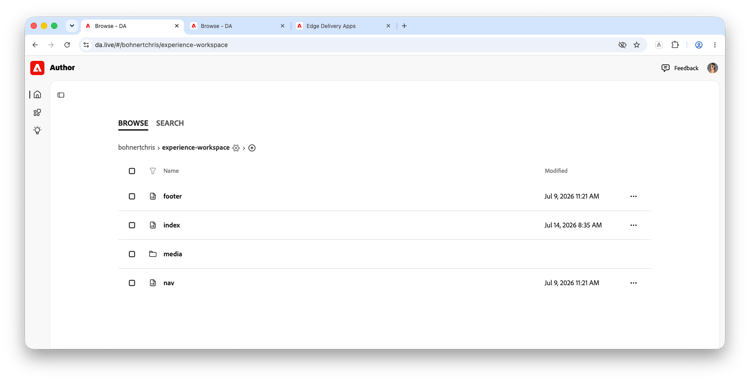
Click on a page to open Experience Workspace and edit that page.
The content browser allows you to get an overview of your content and take bulk actions on it. For example
- Search
- Filter
- View last modified and published times
- Publish or copy content
The assistant panel persists its open/closed state as you use it between windows. If it was showing in your previous window, it is showing in the content browser when you open it. Likewise if you hid it previously, it is hidden in the content browser when you open the browser. Use the collapse icon to open or close the assistant panel

If you do not see the assistant panel or the icon to show it, it may have been disabled for your organization or site level.
For details on the options available in the content browser, see the document Browse Content.
Tools panel
The tools panel allows you to navigate the content of your current project while remaining in your current Experience Workspace project and offers two modes:
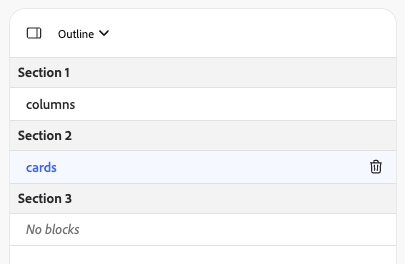
- Outline - Outline mode presents an overview of the sections of your current page.
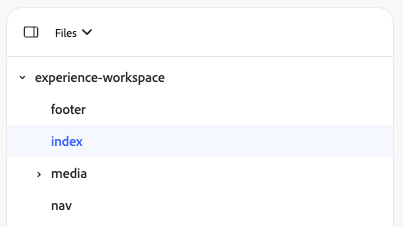
- Files - Files mode presents the files that make up your current project.
Use the dropdown at the top of the browser panel to select the mode.
Outline mode
In outline mode you see the structure of the current page. The outline allows you to:
- Jump to a section - Click on a section in the outline and if the editor is in content mode, it scrolls to that section.
- Rearrange sections - Click on a section and drag it to a new position in the outline. The editor updates the ordering of the content.
- Delete a section - Hover over a section in the outline view and a delete icon is visible. Click on it to remove the entire section. The editor updates the content.
Files mode
In files mode you see the resources that make up your current project in a hierarchy. Click on a page to load it in the editor directly without returning to the content browser.