
Browsing content
Experience Workspace allows you to create amazing content fast. The content browser helps you find the content you need.
Overview
The content browser is familiar to anyone who has managed content hierarchies or used file browsers.
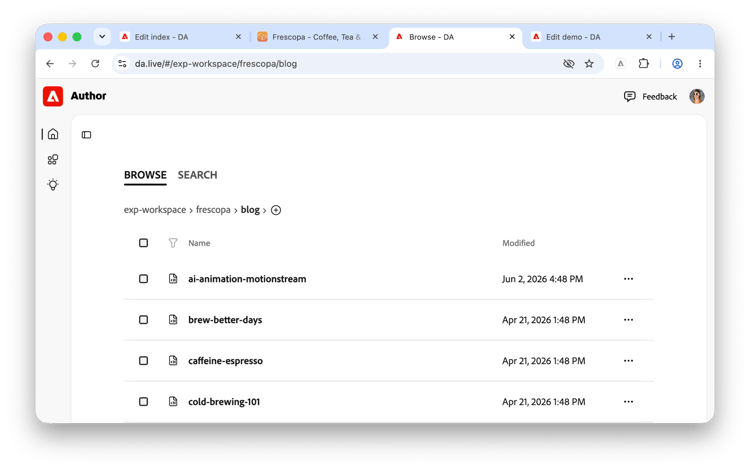
Assistant panel

By default, the content browser opens with the assistant panel closed to focus on finding your content. Click the icon at any time to show the assistant.
If you do not see the assistant panel or the icon to show it, it may have been disabled for your organization or site level.
Browse and Search tabs

By default, the content browser opens to the Browse tab to help you find your content. Switch to Search to search across your content.
Breadcrumbs

The breadcrumbs show where you are in your content hierarchy. Click on any level in the breadcrumbs to jump to that location.
Click the plus at the end of the breadcrumbs to add content to that location.
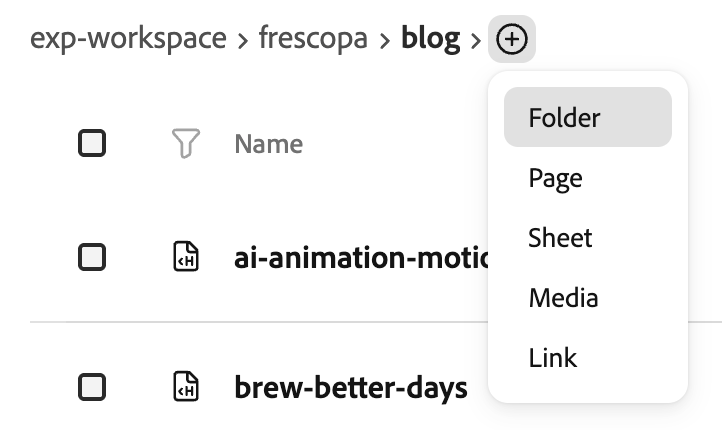
Organizations and sites have configurations. If you are at the level of either an organization or site, the breadcrumbs will expose a settings icon (a gear).

Click the gear icon to edit the configuration sheet for the organization or site.
Content
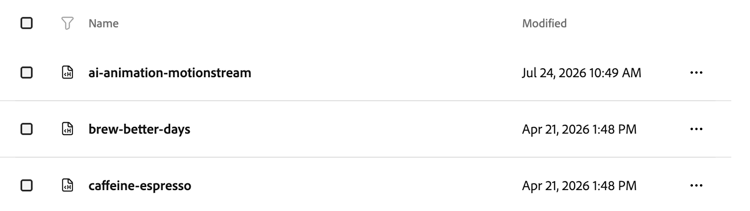
Your content at the location shown in the breadcrumbs is presented as a list.
Click the Name or Modified headings to sort by that heading. Click again to inverse the sort order. When sorting by a heading, an arrow indicates the sort direction.
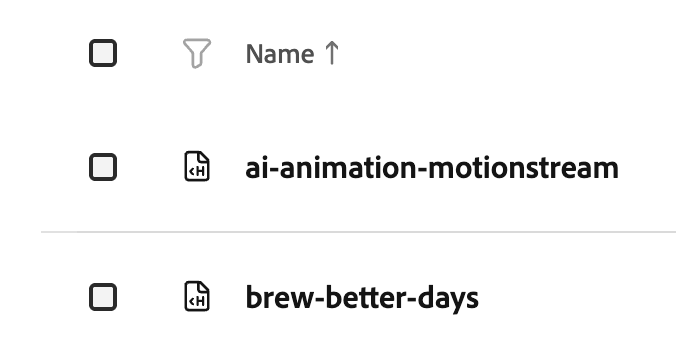
Click the funnel to enter a filter term for the Name column and show only entries matching that filter.
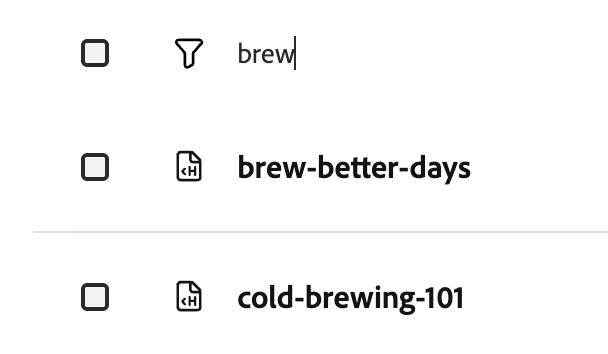
Selecting content
Selecting for editing
To edit an entry, simply click its row to open it in the editor.
Selecting for details
To view the details of an entry, click the ellipsis button for that row.

The details section is revealed showing the version of the page with preview and publish status.
Selecting multiple
Using the checkboxes at the beginning of every row, you can select multiple items at once. Once a checkbox is selected, the actions bar opens.
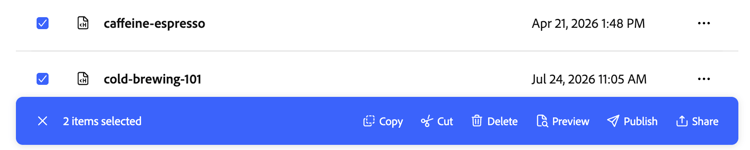
The actions bar allows you to:
- Copy the selected rows
- Cut the selected rows
- Delete the selected rows
- Preview the selected rows
- Publish the selected rows
- Share the selected rows by copying the URLs of the selected items to the clipboard
- Mark an item as a Favorite (only available when selecting a single item)
- Rename an item (only available when selecting a single item)
When cutting or copying content, the actions bar shows only the Paste option and remains open, allowing you to use the breadcrumbs to navigate to the target where you wish to paste the content.
Click the X to close the actions bar.
Deleting
When deleting an item, Experience Workspace asks for confirmation. If the content was previously previewed or published, it gives you the option to unpublish before deletion.
When you delete a file, Experience Workspace makes a timestamped entry in the hidden /.trash folder of a site. This allows anyone with privileges to that folder to restore their content. If a delete is performed inside the trash folder, the content is removed permanently.
Searching
Click the Search tab at the top of the content browser to switch to search mode.
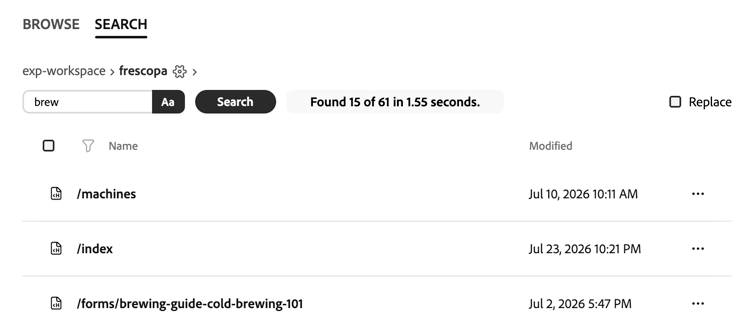
Enter a search term and click Search and the content browser will search the document at the current location in the breadcrumbs and upwards for the search term. Results are presented in the list.
Clicking on a search result will navigate to that page within the existing browser tab. If you wish to retain your list of search results, use Command+Click or Control+Click to open a search result in a new browser tab.
By default, the search is case sensitive. Click the Case sensitive button next to the Search button to toggle to case insensitive.
Check the Replace option to enter a term to replace the search term with and then click the Replace button to perform the replacement across the pages found.
Replacing text does not create a page version on replace. Be absolutely sure you are making the desired replacement. If you make a mistake, you will need to restore from an older version.
Search query tips
Here are a few example search strings.
- Search by block name w/ all variations -
class="name-of-block - Search by block name with no variations -
class="name-of-block" - Search for link -
href="https://url-of-link" - Search for all fragments -
/fragments/ - Search for image -
src="https://url-of-link"