
Versioning and history
Creating content can be a lengthy process with requirements and copy evolving over time. Experience Workspace automatically creates versions for certain actions such as preview, publish, translation / rollout, and when using the Snapshot Launches feature. You can also make your own versions ad hoc. Versions allow you to see a history of what changes were applied to the content and when, as well as restore previous versions.
Determining a version
The current version of a page is displayed in the detailed info of a document or sheet in the Content Browser. Click the ellipsis button of the entry to expand it.
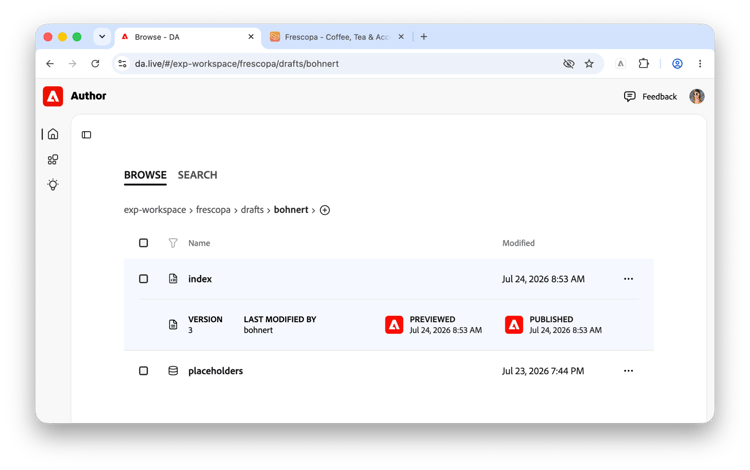
Here you can see the version number as well as when the document was last previewed and published.
Browsing the history
When editing a document or sheet, you can see the details of its history including who edited it, when, and what versions have been made.
-
Expand the tools panel if it is not yet showing and from the dropdown, select Versions.
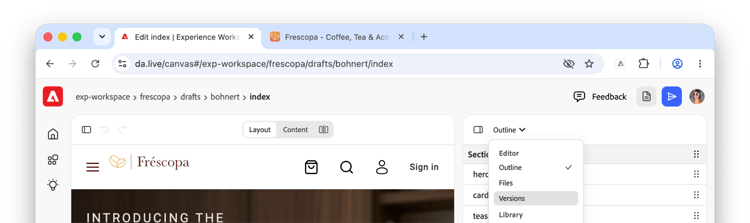
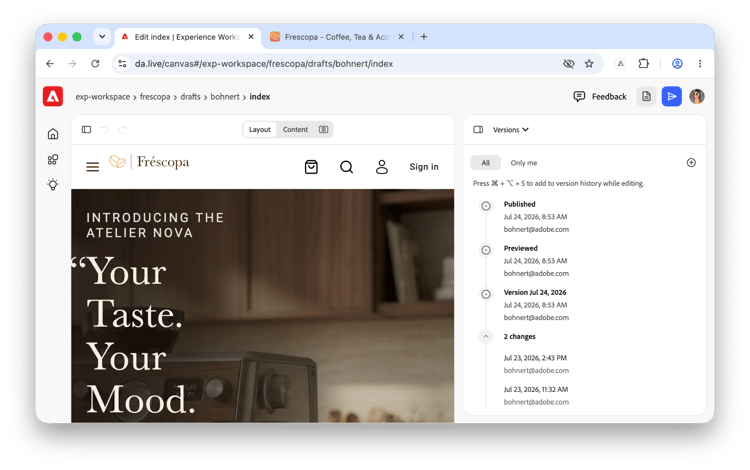
- The Versions details open.
- This history of edits are listed in reverse chronological order, defaulting to the current status of the page.
- Only the most recent changes are shown by default. Click the chevron to reveal the entire history.
- Edits to the page are listed along the timeline without a bullet showing who edited the page and when.
-
Versions of the page are listed along the timeline with a bullet showing who created the version and when.
-
Click a version to view the document or sheet in the document editor as it was at that point in time when the version was made.
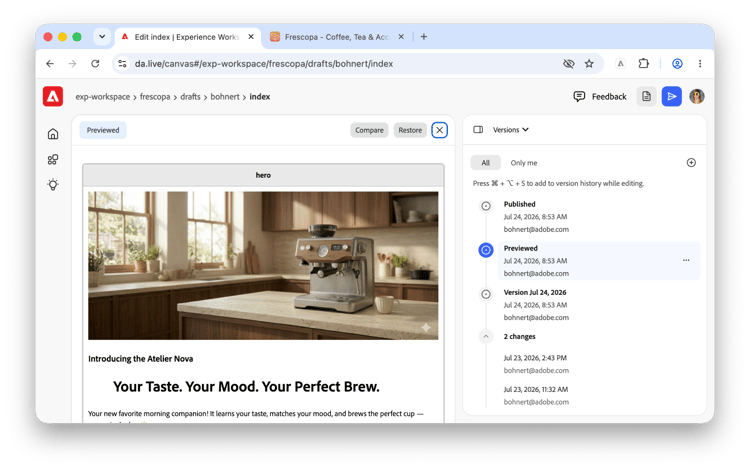
- Click the X in the content editor to close the version and return the editor to the current state of the page.
Comparing versions
Versions of a document or sheet can be compared to the current version.
- Expand the tools panel if it is not yet showing and from the dropdown, select Versions.
- Click on a version in the timeline to preview it in the editor.
- At the top of the editor, click Compare to open a side-by-side view.
- The current page is on the left and the selected version is on the right as shown by the labels in the editor.
-
Differences between the pages are highlighted (in red on the current document and green in the version).
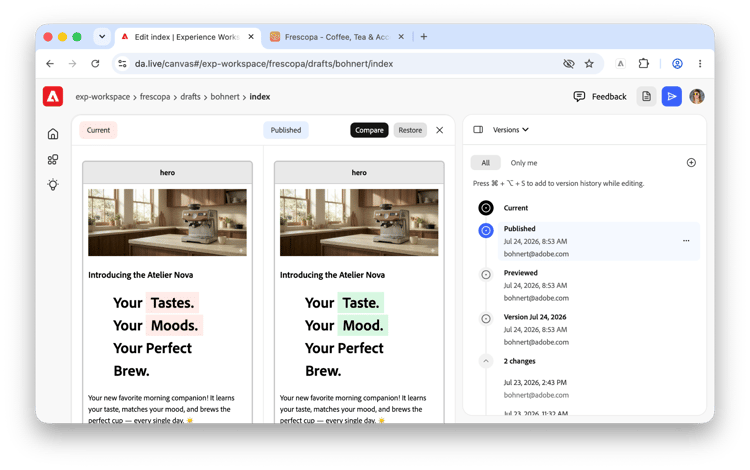
- Click the Compare button in the content editor again to hide the side-by-side comparison view and view only the selected version.
Restoring a version
When viewing a version of a document or sheet, you can restore the document or sheet to that version, overwriting the current version and replacing it with the selected version.
- Expand the tools panel if it is not yet showing and from the dropdown, select Versions.
-
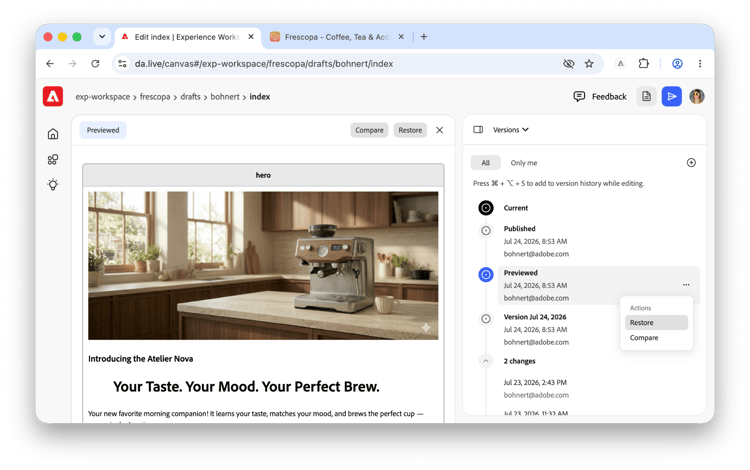
Click a version and then the ellipsis button for the entry and then select Restore.
-
Confirm that you wish to restore the page in the dialog.
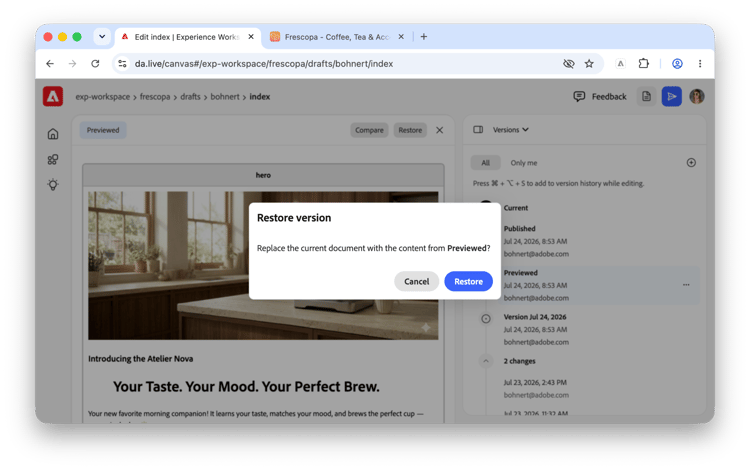
You can also restore a version that you are currently viewing using the Restore button in the content editor.
Undoing version restorations
You can undo a restore via the undo action as if you were doing a manual edit of the page. But once you reload the browser session, you can not go back unless there is a preexisting version.
In general you should consider the implications of any restoration before you take action.
Creating versions
Versions of a page are automatically created every time you preview or publish a document or sheet. You can create your own version at any time when editing.
- While editing a document or a sheet, press Command+Opt+S.
-
The tools panel is shown if it is not already and switched to the Versions view with a new entry in the timeline for the new version.
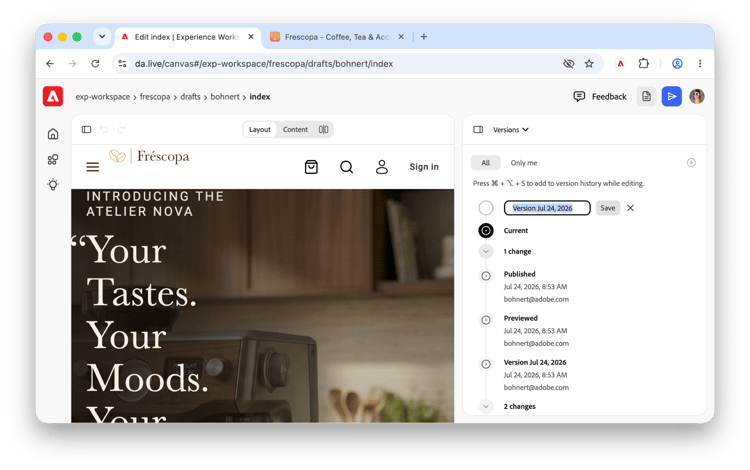
- Enter a name for the version and click Save to save the version or the X to discard.
You can also create a version directly in the Versions view of the tools panel by clicking the plus icon at the top of the panel.
Bulk creation of versions
You can create versions for multiple pages en masse. Please see the document Bulk Operations for details.