
Publishing content
Publishing is the culmination of all of your authoring work. It takes your prepared content and replicates it to a publicly-available preview URL for review purposes or to your final production URL to be consumed by your audience.
Overview
Previewing and publishing both make your content live, but for different purposes and different audiences. Both actions automatically create versions in your version history.
Previewing
Previewing is used to share pages with stakeholders before they are published and available to the general public on your website. Although you can copy and share the URL of this preview, it is not meant for production. It does not have your domain name on it and is invisible to search engines.
Publishing
Publishing makes your content visible to everyone on the internet. It will have your own domain name (if configured) and is intended for your production-ready content.
Previewing and publishing
If you have the correct permissions, you can preview and publish from Experience Workspace by clicking the Send icon in the menu bar.
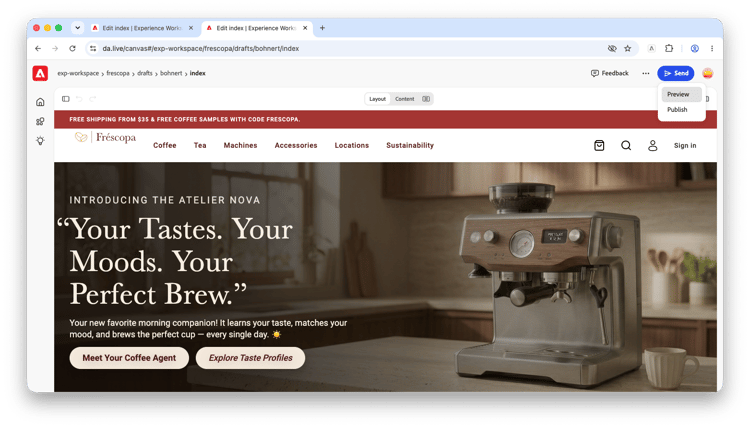
In the drop-down, select Preview to preview and Publish to publish. A new browser tab opens with your previewed or published content.
If you make changes to your document and need to re-preview or re-publish, or publish a page you have already previewed, simply return to the Publish menu or use the Sidekick.
Before previewing or publishing you might want to run preflight checks available in the Prepare menu.
Unpublishing
If you have previously previewed or published a document, you can unpublish that document. Unpublishing removes both preview and publish URLs.
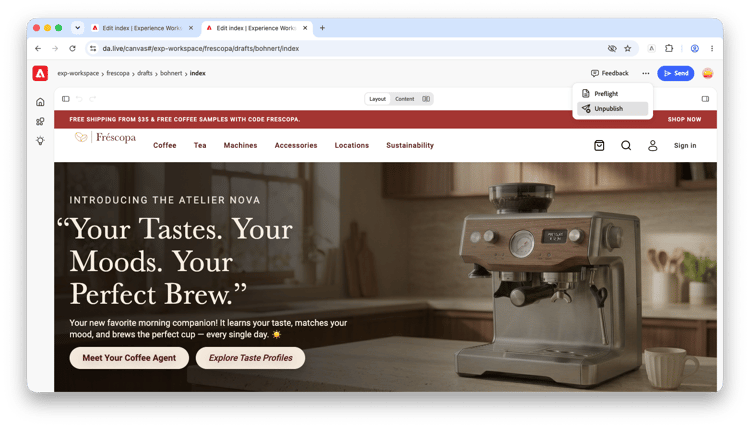
- Open the Prepare menu.
-
Select Unpublish.
-
Type
YESin the confirmation dialog.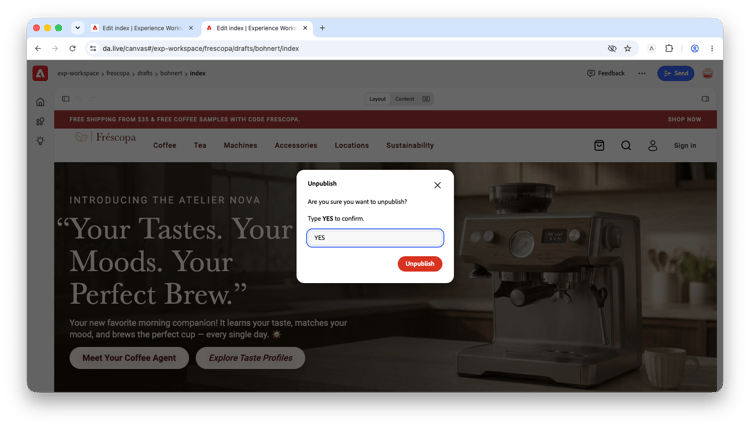
- Click Unpublish to confirm and unpublish the document.
Using the Sidekick
The publish and unpublish options allow you to publish and unpublish content you are working on in Experience Workspace. The Sidekick allows you to take action on pages that you are viewing directly in your browser such as publishing pages, previewing, or editing them back in Experience Workspace.
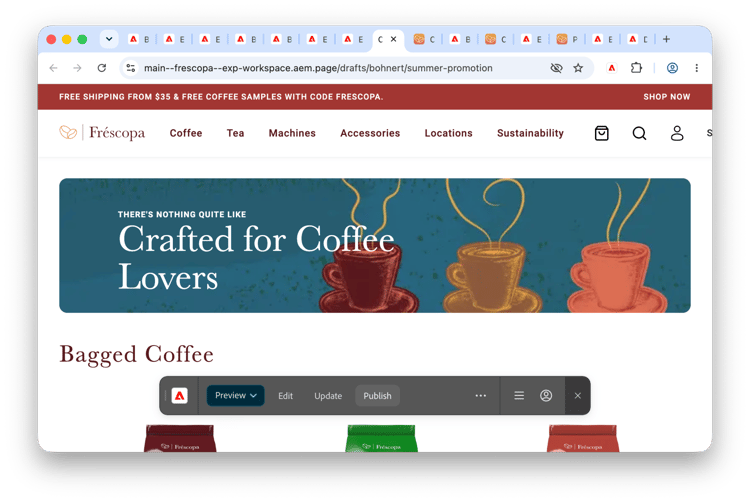
- Install and activate the Sidekick extension in your browser.
- Navigate to a previewed or published URL of your content.
- The Sidekick loads at the bottom of the page and presents options depending on the status of the page including publishing a previewed page and unpublishing a page.
Please see the Sidekick documentation for more details.