
Adobe Managed CDN Advanced Configuration
Adobe Managed CDN can be configured for advanced use cases like setting or unsetting request and response headers, routing traffic to external origins, sending client redirects, blocking traffic based on properties such as headers, and authenticating requests.
To configure such rules one needs to:
- configure Adobe Managed CDN
- create a CDN configuration file in a repository managed by Cloud Manager
- deploy the CDN configuration using an Edge Delivery Configuration Pipeline
There are multiple types of CDN rules that can be implemented:
- Request Transformations - add, remove, request headers and modify request url
- Response Transformations - add, remove response headers
- Traffic Filters - block, allow traffic based on request properties
- Redirects - send 301 or 302 redirects
- Origin Selectors - proxy to external origins
- Authenticators - enforce authentication for parts of your site
In this document, you will first learn how to set up and deploy CDN configuration rules for Adobe Managed CDN. Then, as a more complex example, we will set up authentication for visitors on your site.
Create your first CDN configuration
The following is a simple configuration that sets the response header x-test for requests to path www.example.com/private/page.
kind: "CDN"
version: "1"
data:
  responseTransformations:
    rules:
      - name: set-response-header
        when:
          allOf:
            - {reqProperty: domain, equals: "www.example.com" }
            - {reqProperty: path, like: "/private/*"}
        actions:
          - type: set
            respHeader: x-test
            value: private
Important note: Always guard your CDN rules with a condition targeting the domain so that your actions apply only for the desired domains.
Create a file cdn.yaml in a folder (e.g. /config) in your Cloud Manager git repository and deploy the CDN configuration by creating and running an Edge Delivery Pipeline.
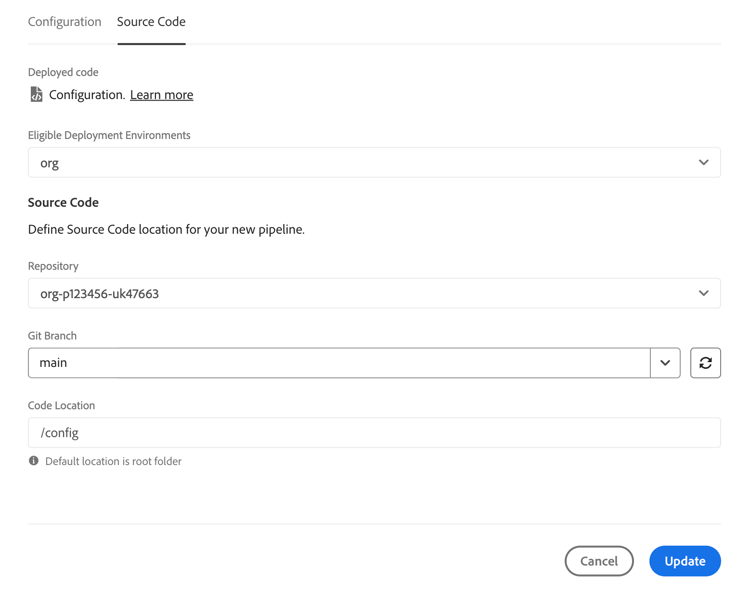
The deployment can take a couple of minutes to complete and after it is finished you can test with a simple curl to check that the header is correctly set.
curl -sv https://www.example.com/private/page
..
< x-test: private
Authentication overview
To implement authentication on your site you need to do the following steps:
- lock access to your custom domain (e.g. www.example.com) for the entire site or for selected paths using an Authentication CDN rule.
- lock access to your origin domain (e.g. https://main--website--acme.aem.live ) using Site Authentication.
The following types of authenticators may be configured::
- Basic Authentication
- OIDC Authentication (OpenID Connect). Request access to beta by emailing aemcs-edgecompute-feedback@adobe.com with your use case
All authentication mechanisms require secrets that should not be hard-coded in your configuration, but use Pipeline Secret Variables . Apply these variables to the Deploy step
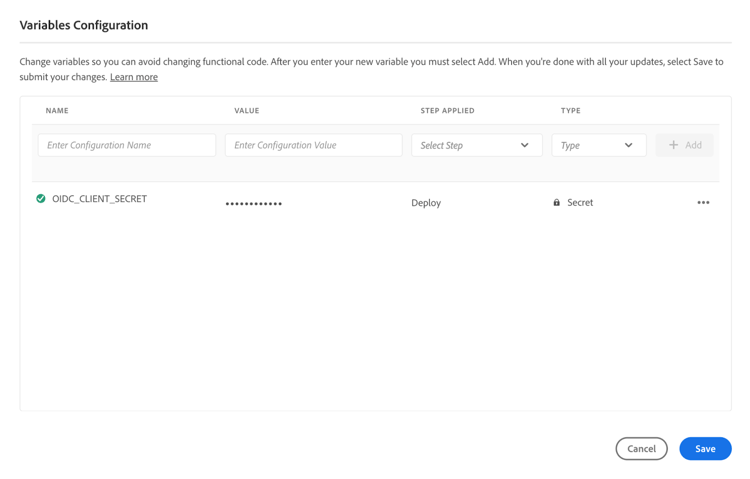
Secrets can be referenced in cdn.yaml using ${{...}} notation:
## e.g. password for Basic Authentication
password: ${{JANE_DOE_PASSWORD}}

## client secret for OIDC Authentication
clientSecret: ${{OIDC_CLIENT_SECRET}}
CDN Basic Authentication
Basic Authentication is not recommended for live production domains, but rather for simple authentication use cases on lower environments or as an initial testing phase before deploying more advanced authentication mechanisms like OIDC Authentication.
kind: "CDN"
version: "1"
data:
  authentication:
    authenticators:
       - name: basic-auth
         type: basic
         credentials:
           - user: johndoe
             password: ${{JOHN_DOE_PASSWORD}}
           - user: janedoe
             password: ${{JANE_DOE_PASSWORD}}
    rules:
       - name: basic-auth-rule
         when:
           allOf:
             - {reqProperty: domain, equals: "www.example.com" }
             - {reqProperty: path, like: "/private/*"}
         action:
           type: authenticate
           authenticator: basic-auth
CDN OIDC Authentication
CDN OIDC (OpenID Connect) Authentication is currently in beta; request access to beta by emailing aemcs-edgecompute-feedback@adobe.com.
OpenID Connect is an authentication protocol that allows applications to verify user identity through a third party identity provider (IdP). This feature has been tested with several identity providers like Azure Entra ID, Okta and Google, but given that it is based on a standard specification it should work with all identity providers that implement OIDC protocol.
The required information for the configuration is
- clientId: the client id (obtained from your IdP)
- clientSecret: the client secret (obtained from your IdP)
- authEndpoint: the IdP authentication endpoint. (e.g. for Azure https://login.microsoftonline.com/XXXXX/oauth2/v2.0/authorize)
- tokenEndpoint: the IdP token endpoint (e.g for Azure https://login.microsoftonline.com/XXXXX/oauth2/v2.0/token)
- logoutEndpoint: the IdP token endpoint (e.g for Azure https://login.microsoftonline.com/XXXXX/oauth2/v2.0/logout)
- jwksUri: the IdP public keys endpoint (e.g. for Azure https://login.microsoftonline.com/XXXXX/discovery/v2.0/keys)
- issuer: the issuer (eg. for Azure https://login.microsoftonline.com/XXXXX/v2.0)
Additionally you should configure the following paths for your site
- domainMatch: is a regex matching the domains for which callback login logout endpoints would be enabled (eg. domainMatch: “^www.example.com$”)
- callback: the url that your IdP will call back after the user authenticates
- login: the url that triggers the login flow
- logout: the url that triggers the logout flow
- loginTarget: (optional) the url where the user should land after a succesful login (if not the initial page is used)
- logoutTarget: (optional) the url where the user should land after a succesful logout (if not specified the root page is used)
To block access to your site only for authenticated users you can deploy a CDN configuration that enforces OIDC authentication using your own OIDC Identity Provider.
kind: CDN
version: v1
data:
  authentication:
    authenticators:
      - type: oidc
        name: oidc-auth
        clientId: "..."
        clientSecret: ${{OIDC_CLIENT_SECRET}}
        authEndpoint: "..."
        tokenEndpoint: "..."
        jwksUri: "..."
        issuer: "..."
        domainMatch: "^www.example.com$"
        callback: /callback
        login: /login
        loginTarget: /after-login
        logout: /logout
        logoutTarget: /after-logout
    rules:
      - name: oidc-auth-rule
        when:
          allOf:
            - {reqPropery: domain, equals: www.example.com}
            - {reqProperty: path, matches: ^/private/.* }
        action:
          type: authenticate
          authenticator: oidc-auth
After you deploy this configuration you should be able to access and load https:// www.example.com/private/page and you will be redirected to the configured IdP for login.
Origin Authentication
In order to fully protect your content you also need to restrict access to aem.live origin. This has two parts:
- configure Site Authentication to lock the origin access
- configure Adobe Managed CDN to send the authentication headers
First you need to configure Site Authentication and obtain a token to access
curl https://main--website--acme.aem.live \
  -H 'authorization: token hlx_ZGFzIGlzdCBkZWluIHRva2Vu'
Then configure the HLX Token as a Pipeline Secret Variable for Deploy step.
The secret variable should contain the entire string that will be sent in Authorization header (including “token hlx_” prefix)
HLX_TOKEN=token hlx_ZGFzIGlzdCBkZWluIHRva2Vu
Last, deploy the CDN configuration to send the token in Authorization header
kind: CDN
version: v1
data:
  originSelectors:
    rules:
      - name: select-aem-origin
        when: { reqPropery: domain, equals: www.example.com }
        action:
          type: selectAemOrigin
          headers:
            Authorization: "${{HLX_TOKEN}}"
To test this you should run the following curl command and expect a 200 instead of a 403.
curl -sv https://www.example.com/page
..
< HTTP/2 200
Previous