Administering Experience Workspace
Learn about the tasks and settings needed to set up Experience Workspace for your content authors' and projects' needs.
Release notes
Discover the latest features, enhancements, and possibilities every month, with a focus on what matters most to authors and content teams.
Configs
Configurations can be set at the organization or site level to define different behaviors of Experience Workspace.
Permissions and security
Experience Workspace and Edge Delivery Services allow fine-grained control of access to configurations, folders, and resources.
Permissions view
The permissions view is a central interface where you can manage permissions for your organization and across your sites.
Access control
This document is a reference for all options available for securing Experience Workspace content. This is not to be confused with locking down your AEM content.
Multi-Site Manager
Multi-Site Manager (MSM) enables organizations, which operate multiple sites sharing common content, to manage them from a single base site.
Structured content
Structured content brings form-based editing to Experience Workspace. You define a schema, authors fill in a generated form in the structured content editor, and the result is delivered as JSON that your Edge Delivery Services blocks can consume.
Schema for structured content
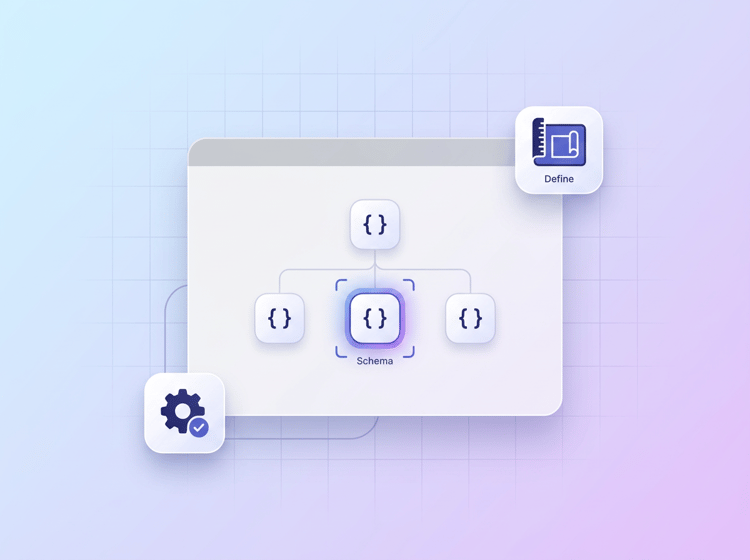
Schemas are the foundation of structured content. They define what fields are available, what types of data they accept, and how they're organized.
Setting up the Prepare menu
The Prepare menu allows authors to take action on a document, sheet, or piece of media before previewing or publishing.
Preflight
Preflight is a mode in the tools panel that automatically uses the Governance Agent to check your document for common issues before you preview or publish.
Set up library
Your library is a selection of blocks, templates, and icons that you predefine for your authors at the project level to help them create their content fast.
AEM agentic plugins
AEM agentic plugins is a connector you register in Experience Workspace allowing you can run a set of authoring, publishing, and administrative actions by describing what you want in natural language using the assistant, instead of opening a separate plugin or app for each task.
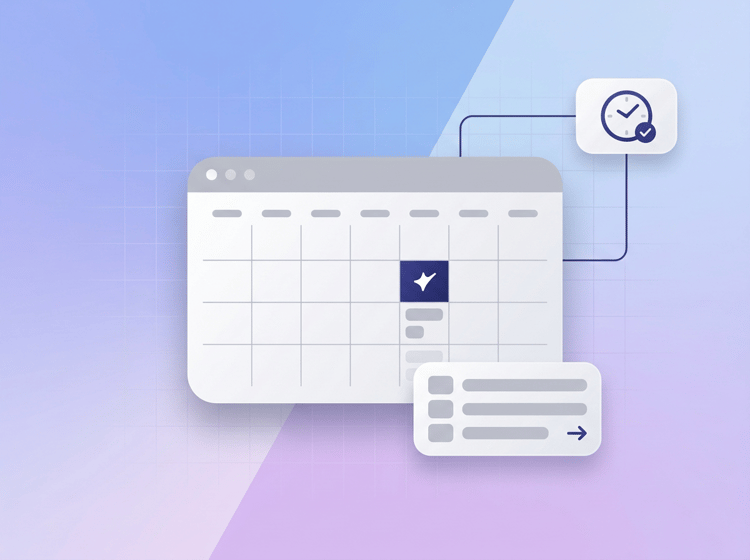
Schedule publish
Schedule publish is a feature-flag plugin in the Prepare menu that allows authors to queue a page or sheet to be published at a future date and time.
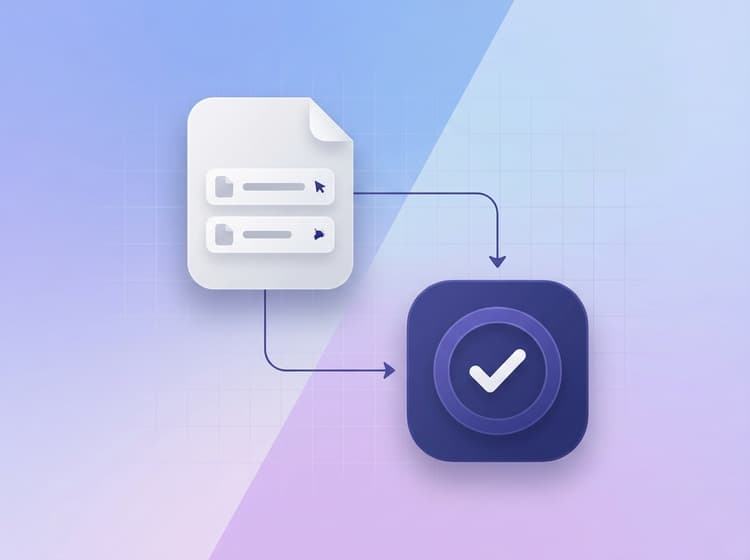
Request Publish
The request publish workflow provides a structured approval process for content publishing.
Request Publish — SKILL.md
This is the request-publish skill that powers agentic (Assistant) mode of the Request Publish feature.
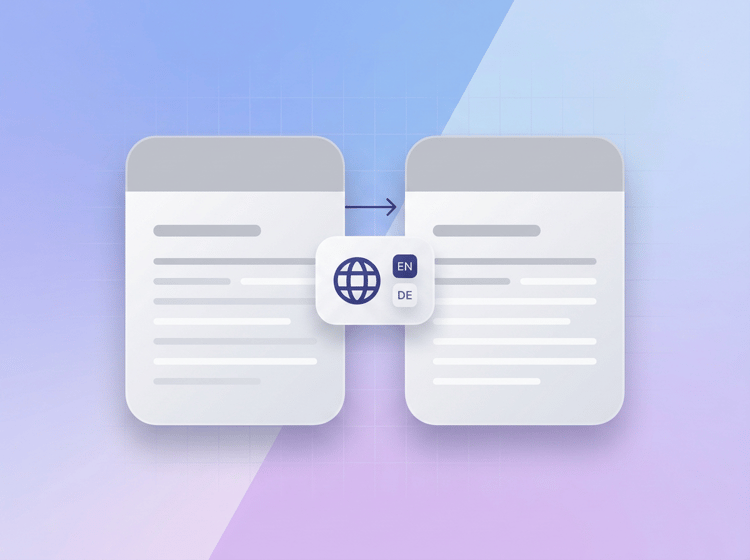
Translation
Experience Workspace offers translation services from Google Translate out-of-the-box, which works without any additional configuration.
Strategies for translation, localization, and rollout
Experience Workspace can help you localize your content, but there are a number of considerations before you get started. It is also good to understand the terms used when localizing content.
Set up translation
Experience Workspace comes with a Translate app that uses Google Translate out-of-the-box, which you can use to localize pages. The defaults handle the most common use cases, but the translation service is flexible and allows a great deal of configuration.
Translation config options
You can adapt your translation config to select another service and control languages, rollout, conflict handling, and content that must not be translated. This document explains the configuration options available.
Translation config samples
Experience Workspace supports multiple translation connectors and configurable translation and localization workflows. These samples provide a starting point for common setups.
Connecting to a translation service
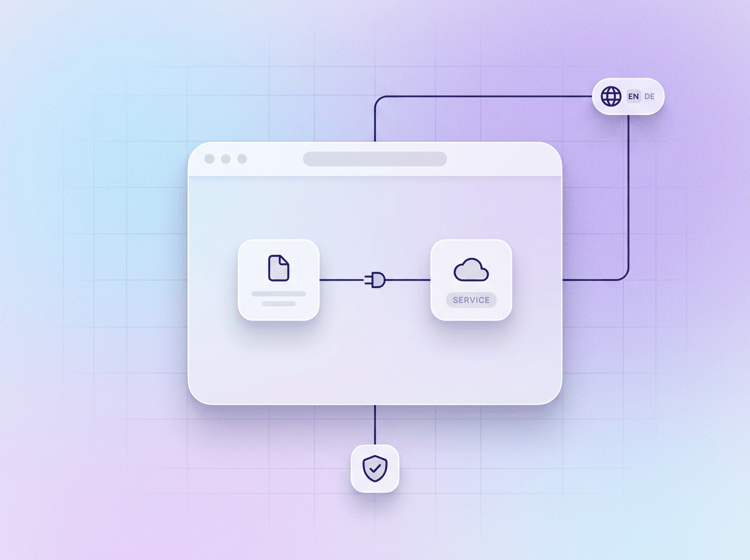
You can configure a supported connector for your translation needs, submit a pull request with your own connector, or request a connector from Adobe.
Import Edge Delivery Services projects into Experience Workspace
Learn how to import your existing Edge Delivery Services project into Experience Workspace.
Restore content from AEM
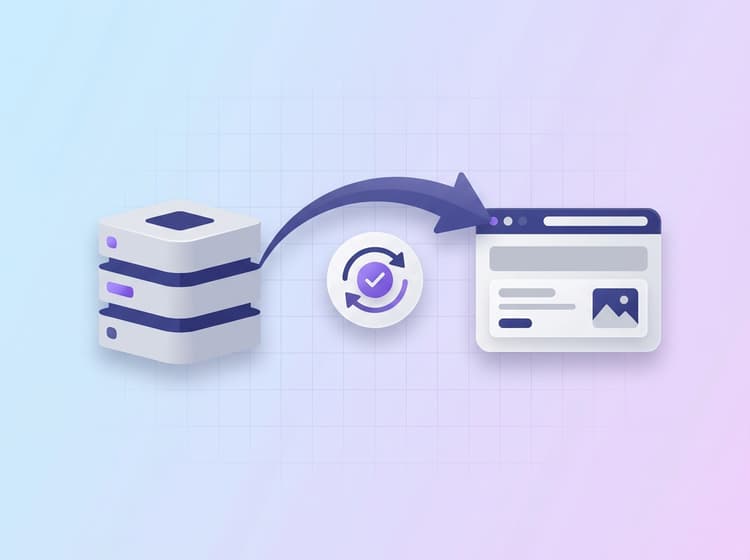
There are times you may want to restore or import content from aem.page or aem.live resources. If you have a list of pages you want to restore, you can simply submit them to Experience Workspace’s import app.
Enabling focal point
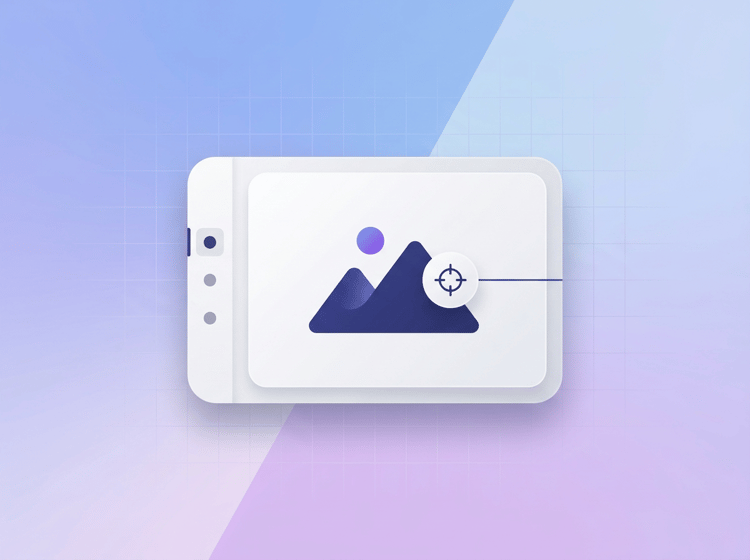
Images are a vital part of any digital experience. When enabled at the block level, authors can define focal points for images within the UI when adding blocks.
Media Library
Media Library is a unified view into your site's images, fragments, videos, SVGs, PDFs, and more. Whether they are embedded into documents, uploaded into Experience Workspace directly, or externally referenced from another DAM, you can quickly filter, see usage, get details, and make informed decisions about your content.
Send to Adobe Target
The Experience Workspace Send to Adobe Target integration allows authors to push fragments or full pages directly to Adobe Target for personalization and experimentation use cases.
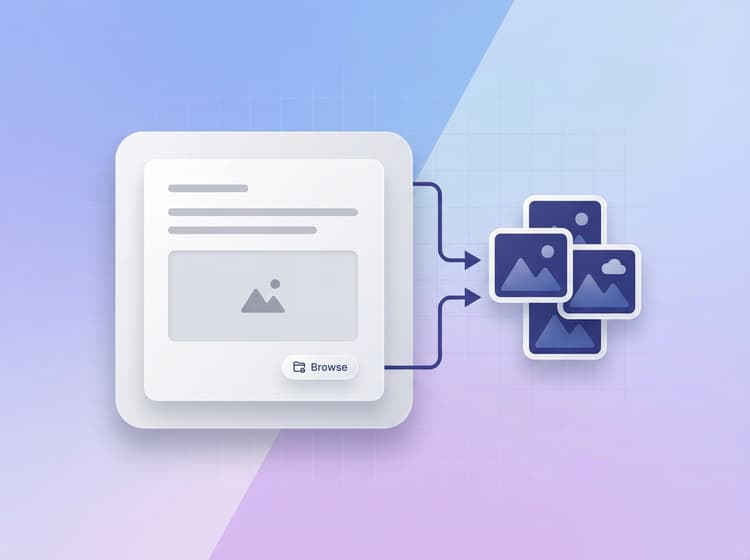
Set up AEM Assets
Experience Workspace allows authors to add assets by uploading them directly to the document as well as a full integration with AEM Assets. The AEM Assets integration provides an out-of-the-box way to work with your assets in AEM Assets.
Upgrading
If your site already uses Edge Delivery Services with document-based authoring (SharePoint or Google Drive) and you wish to upgrade to Experience Workspace, you have two options for how to upgrade.
Set up the Universal Editor
For new projects, we recommend Experience Workspace instead of Universal Editor. Experience Workspace provides an improved authoring experience that combines the best of Universal Editor with agentic capabilities.